> ## Documentation Index
> Fetch the complete documentation index at: https://archie.com/docs/llms.txt
> Use this file to discover all available pages before exploring further.
# Importing data
> Bulk-load records into a table from a CSV file with column mapping and schema-aware validation.
The CSV importer loads records into a table from a CSV file. The importer maps your CSV columns to the table's fields, runs every schema-level validation on each row, and rejects rows that would violate a constraint.
## Validations the importer runs
Every constraint defined on the table applies during import:
* **Type checks** — strings can't go into number fields, invalid dates are rejected.
* **Mandatory fields** — every required field must be present in the CSV (or mapped to a column that has a value).
* **Unique constraints** — rows with duplicate values for unique fields are rejected.
* **Enum values** — values for [inline enum](/docs/features/backend/data-model/fields/inline-enum) and [user-defined](/docs/features/backend/data-model/fields/user-defined) fields must match the allowed list.
* **Foreign keys** — relationship fields must reference existing rows in the related table.
Rows that fail validation are reported back to you with the offending field and reason; the rest of the import proceeds.
## Step-by-step
Open the table in the Data Model and switch to the **Data** tab.
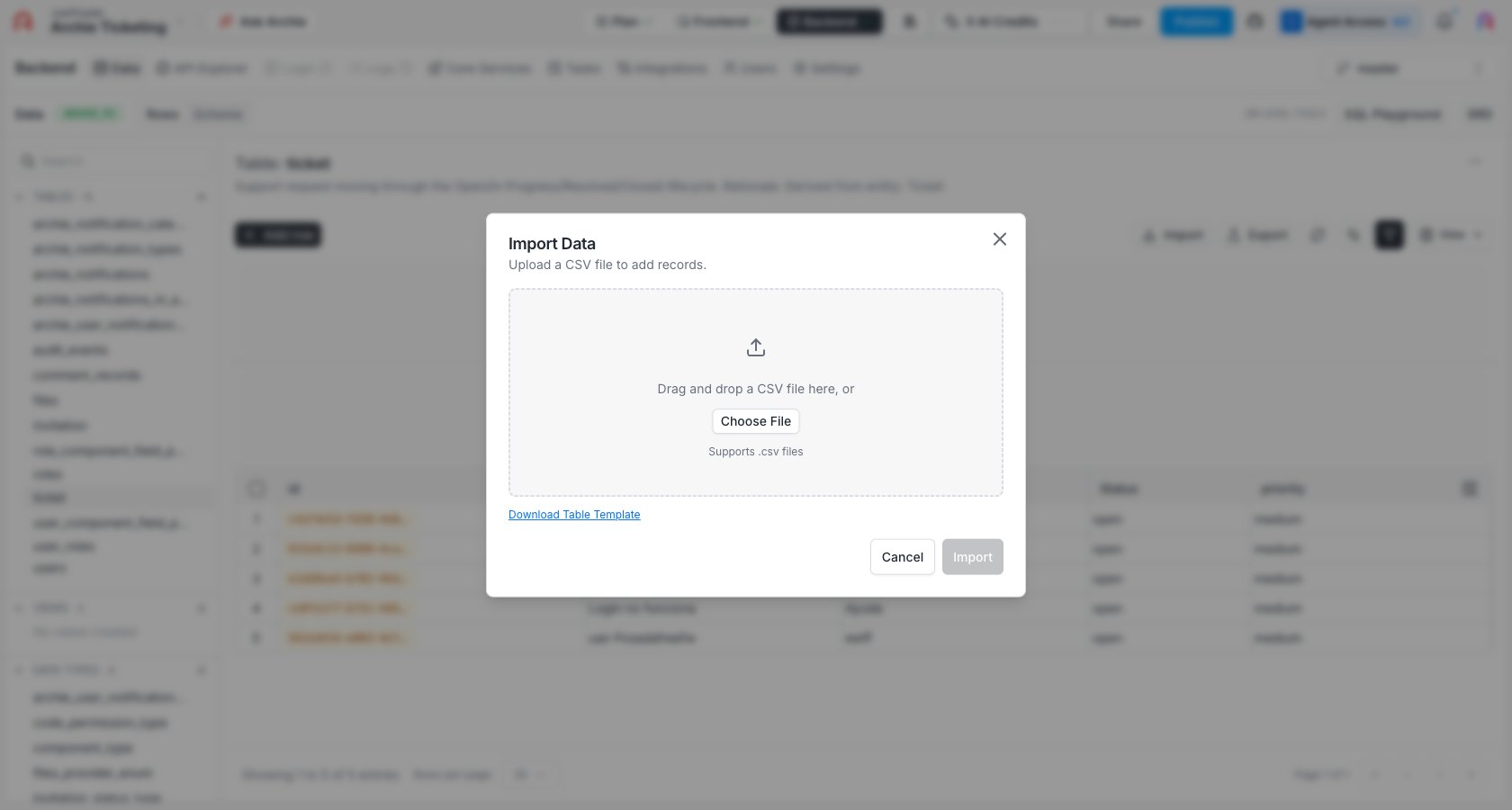
The button sits in the toolbar. The **Import Data** dialog opens.
Drag and drop a CSV file or click **Choose File**. Need a starting point? Click **Download Table Template** for a CSV pre-headered with the table's field names.
 The dialog shows a **Data Import Preview** — up to 5 rows, matched to fields by column header. System columns (`id`, timestamps, and so on) are hidden here since the importer generates them automatically.
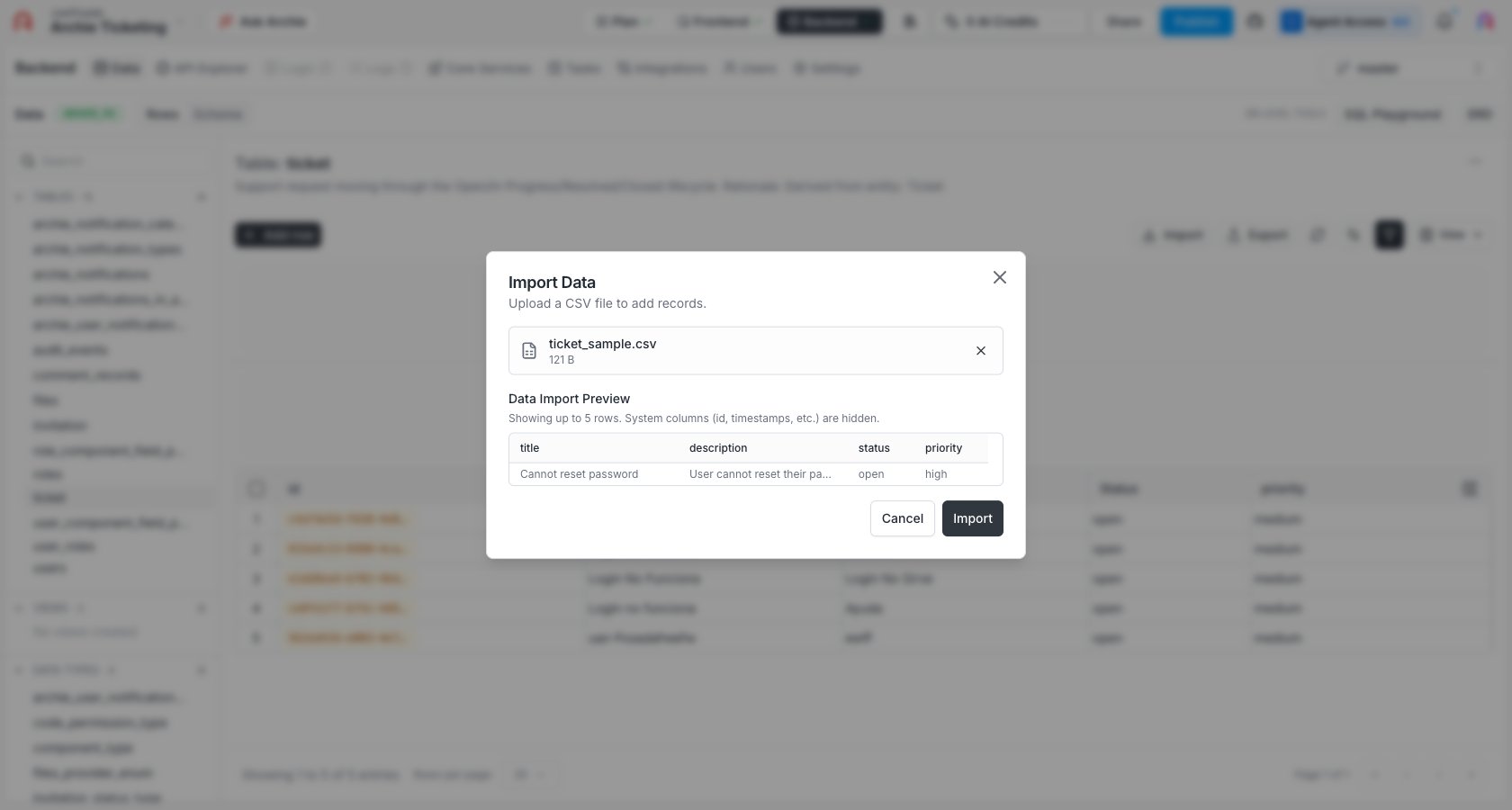 The importer inserts the rows and runs the same validations as adding a row by hand. Rows that fail are reported with the offending field and reason; valid rows are still inserted.
## Preparing the CSV
A few small things make imports go smoothly:
* **Match column headers to field names.** The auto-mapper relies on header names; matching field names exactly removes a manual step.
* **Use ISO 8601 for dates.** `2025-03-14` for dates, `2025-03-14T10:30:00Z` for timestamps.
* **Use the exact enum values.** Enum and user-defined fields are case-sensitive — match the casing defined on the [Data Type](/docs/features/backend/data-model/data-types).
* **Don't include id, created\_at, or audit columns.** Archie generates these automatically. If they're in the CSV, leave them unmapped.
* **Reference rows by their primary key for relationships.** If a CSV column maps to a relationship field, populate it with the related row's `id` (typically a UUID).
## Permissions
Importing data uses the same write permissions as adding rows through the [Data Viewer](/docs/features/backend/data-model/data-viewer). A user who can't write to a field through the API can't import into it either. Configure access in [Role-Based Access](/docs/features/backend/app-services/role-based-access).
## FAQ
The failing row is skipped and reported back with the field and reason. The remaining valid rows are still imported. Fix the offending rows and re-run the import for them only.
Yes. Map the relationship column in your CSV to the primary key (usually the UUID `id`) of the related row. The importer enforces referential integrity, so the related row must already exist.
Generally no — Archie generates IDs automatically. Include the id column only when you're explicitly upserting rows with known IDs (for example, restoring an export).
The importer batches rows so size isn't a hard ceiling, but very large files can take a while. For multi-million-row imports, consider splitting the file or scripting the load through a custom function.
No. The importer inserts new rows. To update existing rows in bulk, use the SQL Playground or a custom function.
The importer inserts the rows and runs the same validations as adding a row by hand. Rows that fail are reported with the offending field and reason; valid rows are still inserted.
## Preparing the CSV
A few small things make imports go smoothly:
* **Match column headers to field names.** The auto-mapper relies on header names; matching field names exactly removes a manual step.
* **Use ISO 8601 for dates.** `2025-03-14` for dates, `2025-03-14T10:30:00Z` for timestamps.
* **Use the exact enum values.** Enum and user-defined fields are case-sensitive — match the casing defined on the [Data Type](/docs/features/backend/data-model/data-types).
* **Don't include id, created\_at, or audit columns.** Archie generates these automatically. If they're in the CSV, leave them unmapped.
* **Reference rows by their primary key for relationships.** If a CSV column maps to a relationship field, populate it with the related row's `id` (typically a UUID).
## Permissions
Importing data uses the same write permissions as adding rows through the [Data Viewer](/docs/features/backend/data-model/data-viewer). A user who can't write to a field through the API can't import into it either. Configure access in [Role-Based Access](/docs/features/backend/app-services/role-based-access).
## FAQ
The failing row is skipped and reported back with the field and reason. The remaining valid rows are still imported. Fix the offending rows and re-run the import for them only.
Yes. Map the relationship column in your CSV to the primary key (usually the UUID `id`) of the related row. The importer enforces referential integrity, so the related row must already exist.
Generally no — Archie generates IDs automatically. Include the id column only when you're explicitly upserting rows with known IDs (for example, restoring an export).
The importer batches rows so size isn't a hard ceiling, but very large files can take a while. For multi-million-row imports, consider splitting the file or scripting the load through a custom function.
No. The importer inserts new rows. To update existing rows in bulk, use the SQL Playground or a custom function.