> ## Documentation Index
> Fetch the complete documentation index at: https://archie.com/docs/llms.txt
> Use this file to discover all available pages before exploring further.
# Data Types
> Data Types are reusable named enums you can apply to fields across tables — defined once, applied everywhere.
A Data Type is a reusable named enum — a fixed list of values that you define once and apply to fields across your data model. Instead of declaring `DRAFT`, `PUBLISHED`, `ARCHIVED` separately on every field that needs those statuses, you create one `post_status_enum` Data Type and reference it wherever it's needed.
When you update a Data Type, every field that uses it inherits the change.
## When to use a Data Type
Use a Data Type when the same list of values needs to stay consistent across multiple fields or tables:
* A `status_enum` shared by `posts.status`, `comments.status`, and `pages.status`
* A `priority_enum` shared across every table that has a priority column
* A `currency_enum` shared by `orders.currency`, `invoices.currency`, and `payments.currency`
If the list lives on exactly one field and you don't expect to reuse it, use an [inline enum](/features/backend/data-model/fields/inline-enum) instead.
## Creating a Data Type
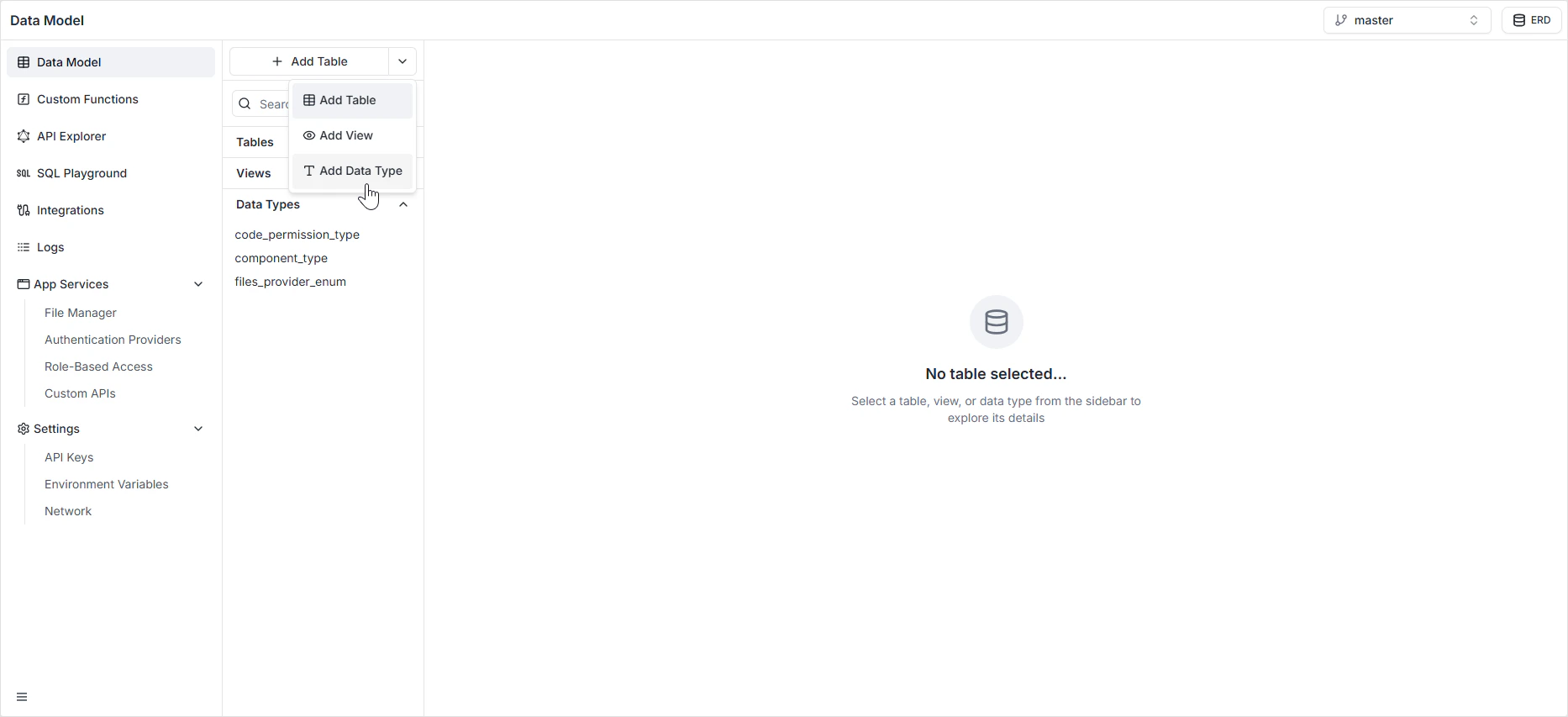
Find the **+ Add Table** button at the top of the sidebar.
Click the dropdown arrow next to **+ Add Table**.
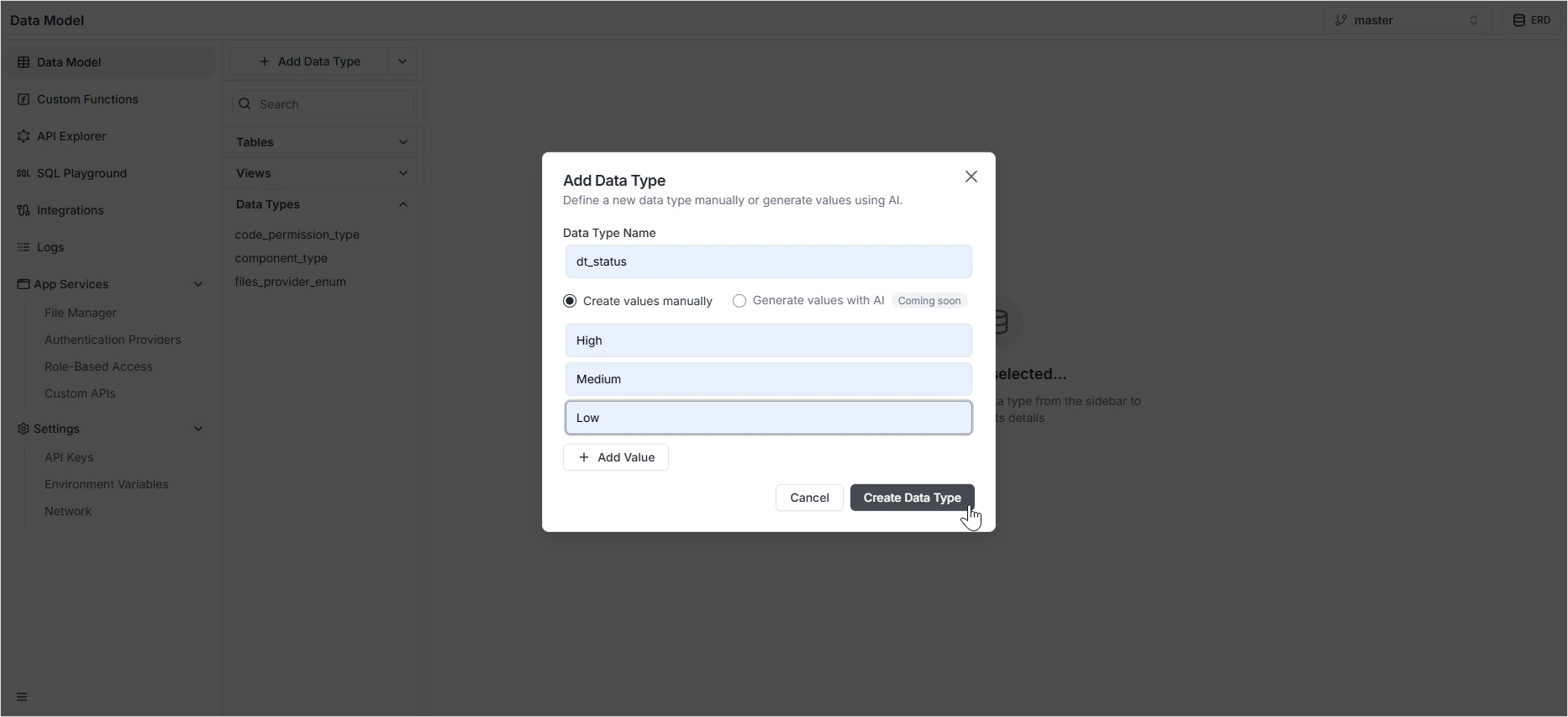
Select **Add Data Type** from the menu. The Data Type editor opens.
Give the Data Type a unique, lowercase identifier. The convention is to suffix the name with `_enum` (for example, `course_status_enum`) so it's clear at a glance what it is.
Enter the allowed values in upper snake case (for example, `IN_PROGRESS`, `COMPLETED`). Add as many rows as you need.
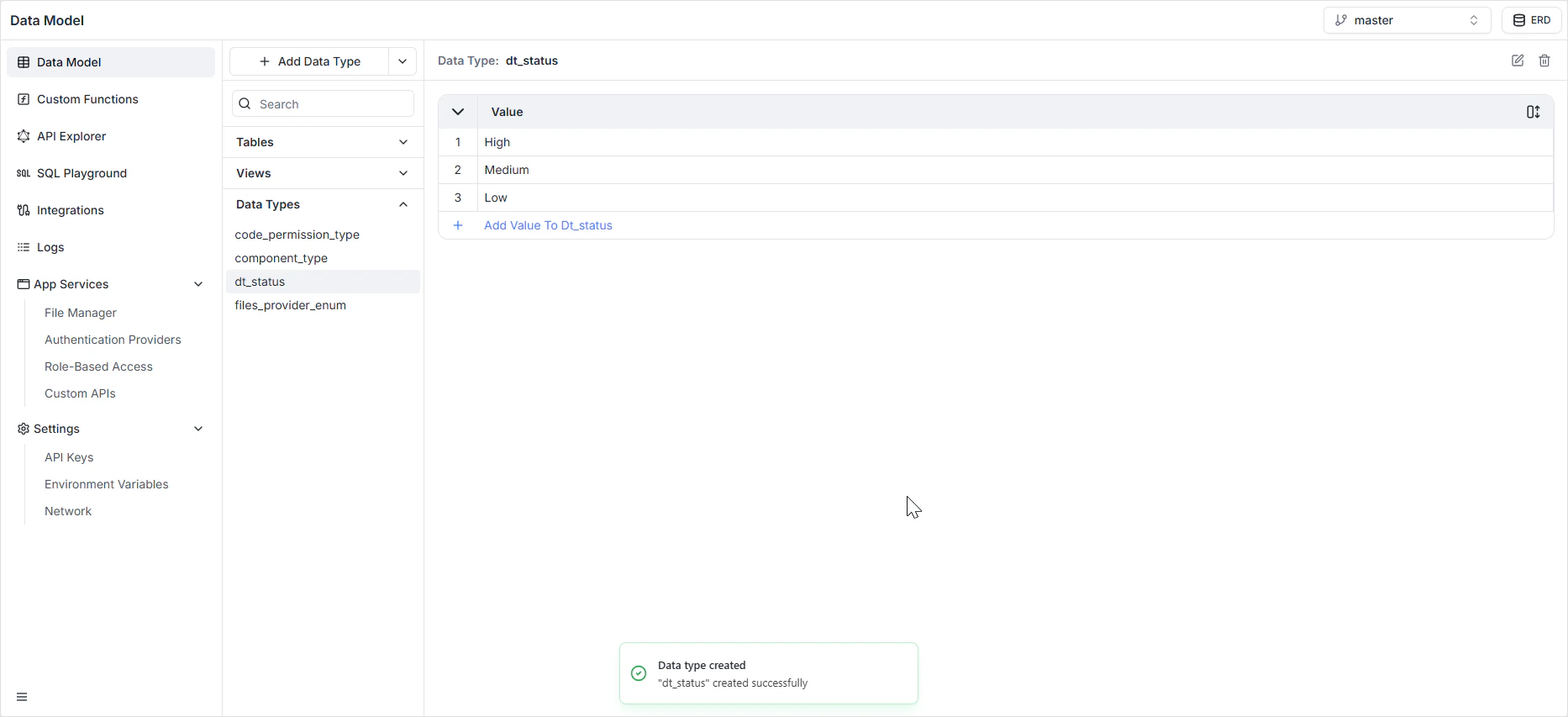
The Data Type appears in the **Data Types** section of the sidebar and becomes available to any user-defined field.
 ## Applying a Data Type to a field
On any table's **Schema** tab, add a [user-defined field](/features/backend/data-model/fields/user-defined) and pick the Data Type from the **Enum Type** dropdown. The field will only accept values from that Data Type's list.
## Examples
| Data Type name | Sample values |
| ------------------------ | -------------------------------------------- |
| `course_status_enum` | `OPEN`, `CLOSED`, `IN_PROGRESS`, `CANCELLED` |
| `grade_type_enum` | `A`, `B`, `C`, `D`, `F`, `INCOMPLETE` |
| `resource_type_enum` | `VIDEO`, `PDF`, `QUIZ`, `ASSIGNMENT` |
| `attendance_status_enum` | `PRESENT`, `ABSENT`, `LATE`, `EXCUSED` |
## Why Data Types over inline enums
* **Standardization** — every field using `status_enum` accepts the exact same list of values, eliminating drift between tables.
* **Single source of truth** — when business rules change, you update the Data Type once and every field that uses it is updated.
* **Predictable APIs** — the GraphQL schema exposes one shared enum type instead of many lookalike ones.
## How it appears in the API
The Data Type is generated as a single enum type in the GraphQL schema. Every field that uses it gets the same typed value, with autocompletion and validation on the client. See the [GraphQL API Explorer](/features/backend/graphql-api-explorer/overview) to inspect the generated types.
## Permissions
Data Types are not access-controlled — they're shape definitions. Read and write access to fields that use them is governed in [Role-Based Access](/features/backend/app-services/role-based-access).
## FAQ
Every field using the Data Type immediately accepts the new value. Existing rows are untouched. This is safe and the most common kind of change.
Any rows that still hold the removed value will fail validation on update. Migrate affected rows to a different value before removing it from the Data Type.
Renaming changes the Data Type but does not rewrite existing rows. Update affected rows to the new value after renaming.
Yes. Create the Data Type with the same values, then change the field's type from inline enum to user-defined and pick the new Data Type. Existing values that match carry over.
No. Data Type names are unique within a project. Pick names that describe the domain meaning (`order_status_enum`) rather than the column they happen to be attached to.
## Applying a Data Type to a field
On any table's **Schema** tab, add a [user-defined field](/features/backend/data-model/fields/user-defined) and pick the Data Type from the **Enum Type** dropdown. The field will only accept values from that Data Type's list.
## Examples
| Data Type name | Sample values |
| ------------------------ | -------------------------------------------- |
| `course_status_enum` | `OPEN`, `CLOSED`, `IN_PROGRESS`, `CANCELLED` |
| `grade_type_enum` | `A`, `B`, `C`, `D`, `F`, `INCOMPLETE` |
| `resource_type_enum` | `VIDEO`, `PDF`, `QUIZ`, `ASSIGNMENT` |
| `attendance_status_enum` | `PRESENT`, `ABSENT`, `LATE`, `EXCUSED` |
## Why Data Types over inline enums
* **Standardization** — every field using `status_enum` accepts the exact same list of values, eliminating drift between tables.
* **Single source of truth** — when business rules change, you update the Data Type once and every field that uses it is updated.
* **Predictable APIs** — the GraphQL schema exposes one shared enum type instead of many lookalike ones.
## How it appears in the API
The Data Type is generated as a single enum type in the GraphQL schema. Every field that uses it gets the same typed value, with autocompletion and validation on the client. See the [GraphQL API Explorer](/features/backend/graphql-api-explorer/overview) to inspect the generated types.
## Permissions
Data Types are not access-controlled — they're shape definitions. Read and write access to fields that use them is governed in [Role-Based Access](/features/backend/app-services/role-based-access).
## FAQ
Every field using the Data Type immediately accepts the new value. Existing rows are untouched. This is safe and the most common kind of change.
Any rows that still hold the removed value will fail validation on update. Migrate affected rows to a different value before removing it from the Data Type.
Renaming changes the Data Type but does not rewrite existing rows. Update affected rows to the new value after renaming.
Yes. Create the Data Type with the same values, then change the field's type from inline enum to user-defined and pick the new Data Type. Existing values that match carry over.
No. Data Type names are unique within a project. Pick names that describe the domain meaning (`order_status_enum`) rather than the column they happen to be attached to.