> ## Documentation Index
> Fetch the complete documentation index at: https://archie.com/docs/llms.txt
> Use this file to discover all available pages before exploring further.
# Importing data
> Bulk-load records into a table from a CSV file with column mapping and schema-aware validation.
The CSV importer loads records into a table from a CSV file. The importer maps your CSV columns to the table's fields, runs every schema-level validation on each row, and rejects rows that would violate a constraint.
## Validations the importer runs
Every constraint defined on the table applies during import:
* **Type checks** — strings can't go into number fields, invalid dates are rejected.
* **Mandatory fields** — every required field must be present in the CSV (or mapped to a column that has a value).
* **Unique constraints** — rows with duplicate values for unique fields are rejected.
* **Enum values** — values for [inline enum](/features/backend/data-model/fields/inline-enum) and [user-defined](/features/backend/data-model/fields/user-defined) fields must match the allowed list.
* **Foreign keys** — relationship fields must reference existing rows in the related table.
Rows that fail validation are reported back to you with the offending field and reason; the rest of the import proceeds.
## Step-by-step
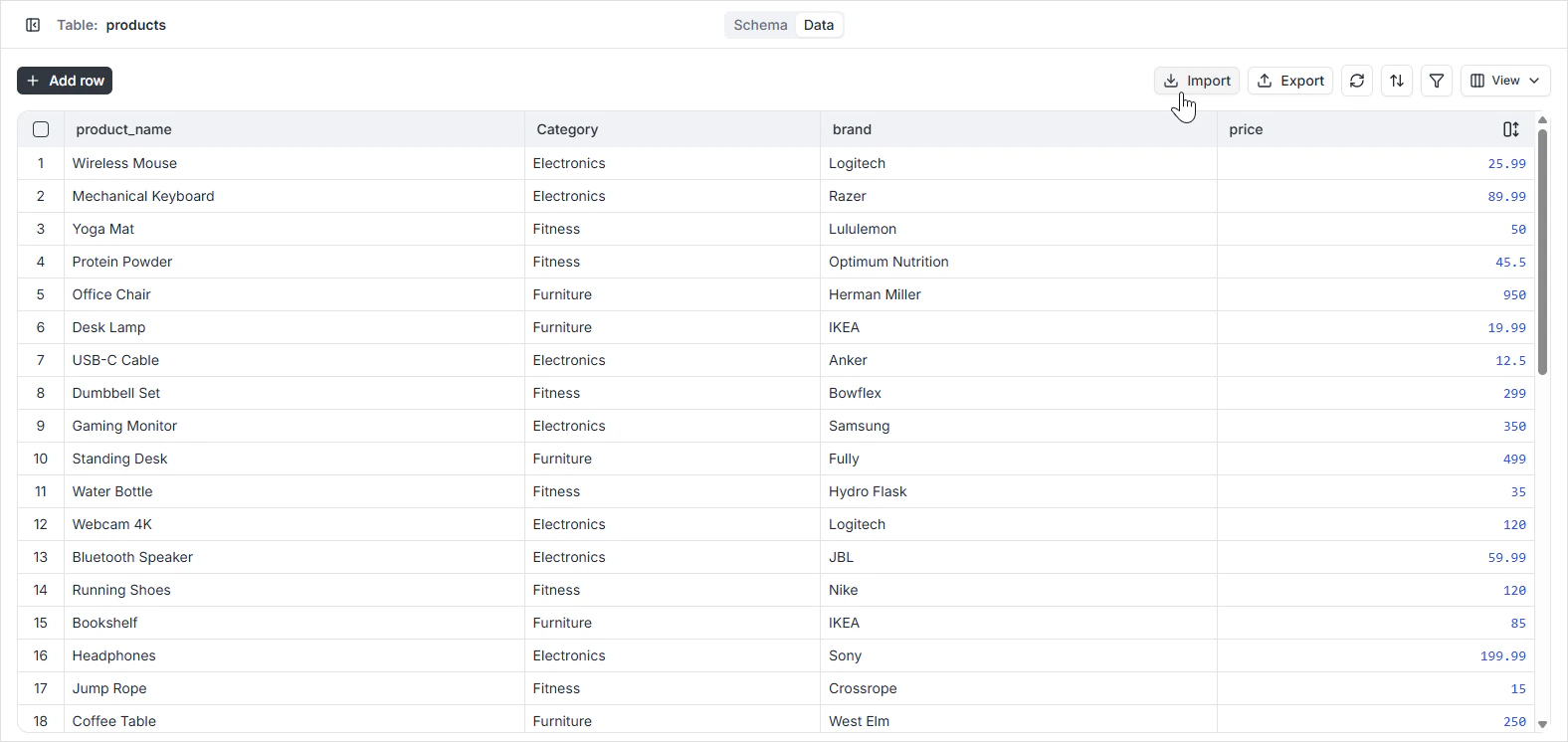
Open the table in the Data Model and switch to the **Data** tab.
The icon sits in the toolbar. The import dialog opens.
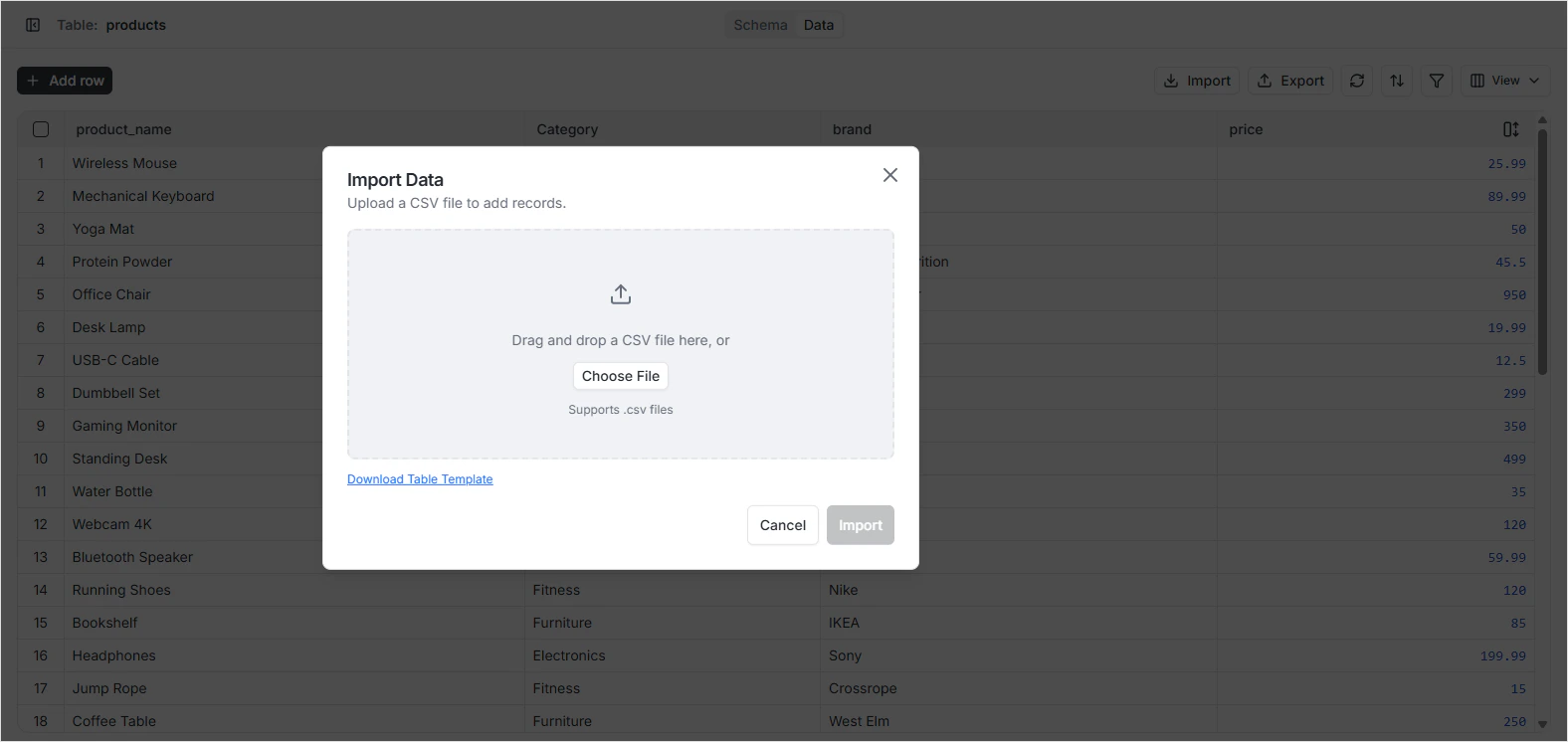
Select the file from your machine. The importer reads the first few rows to preview the data.
 Verify the CSV format matches what the importer expects:
* **Target table** — by default the current table. You can pick a different table if needed.
* **Delimiter** — comma (`,`) or semicolon (`;`).
* **Quote character** — usually a double quote (`"`).
* **Header row** — the CSV must have a header row in the first line containing the field names.
* **Strict validation** — enforce schema rules. Leave this on unless you know what you're doing.
Verify the CSV format matches what the importer expects:
* **Target table** — by default the current table. You can pick a different table if needed.
* **Delimiter** — comma (`,`) or semicolon (`;`).
* **Quote character** — usually a double quote (`"`).
* **Header row** — the CSV must have a header row in the first line containing the field names.
* **Strict validation** — enforce schema rules. Leave this on unless you know what you're doing.
 The importer auto-matches CSV columns to fields by name. Review the mapping and adjust any columns that didn't match.
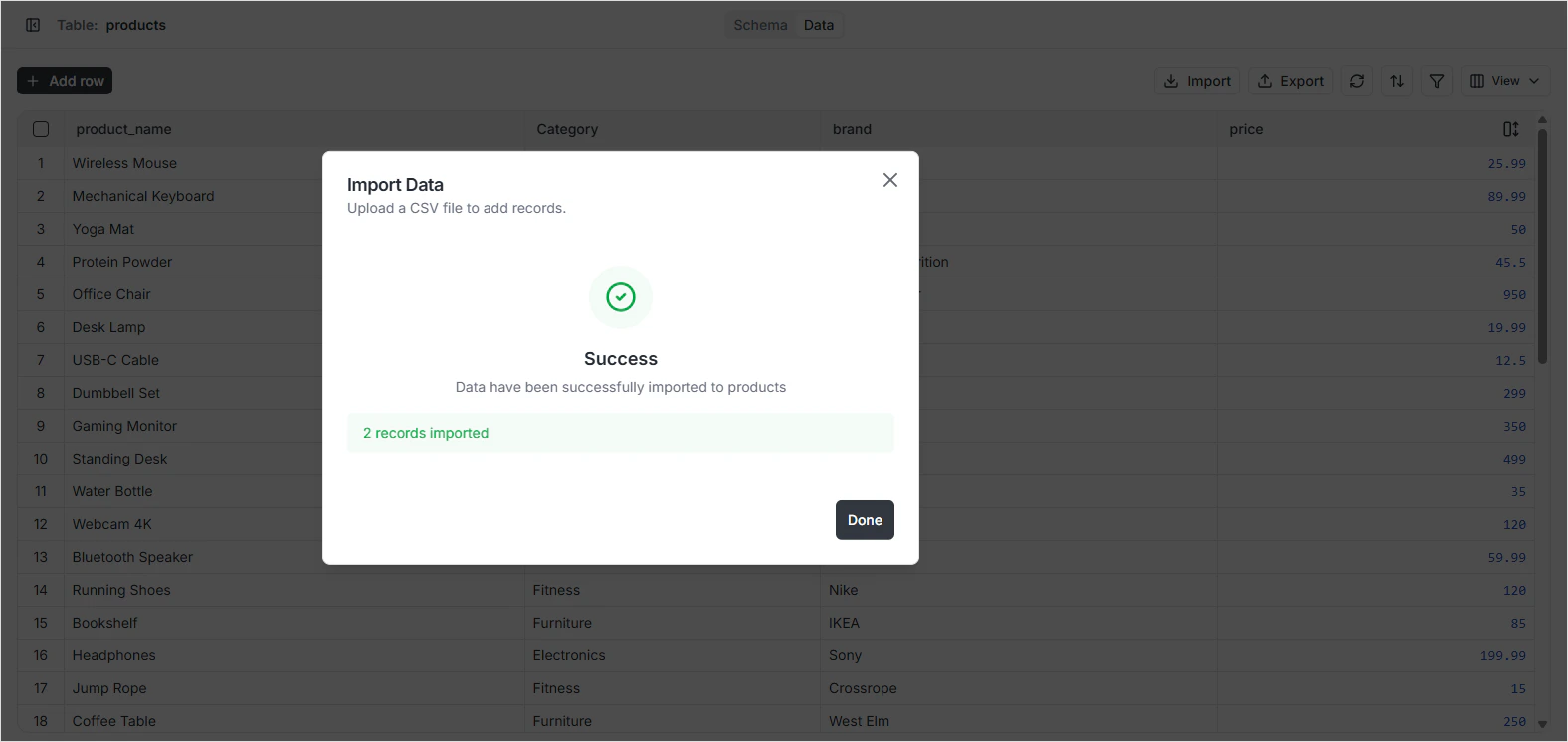
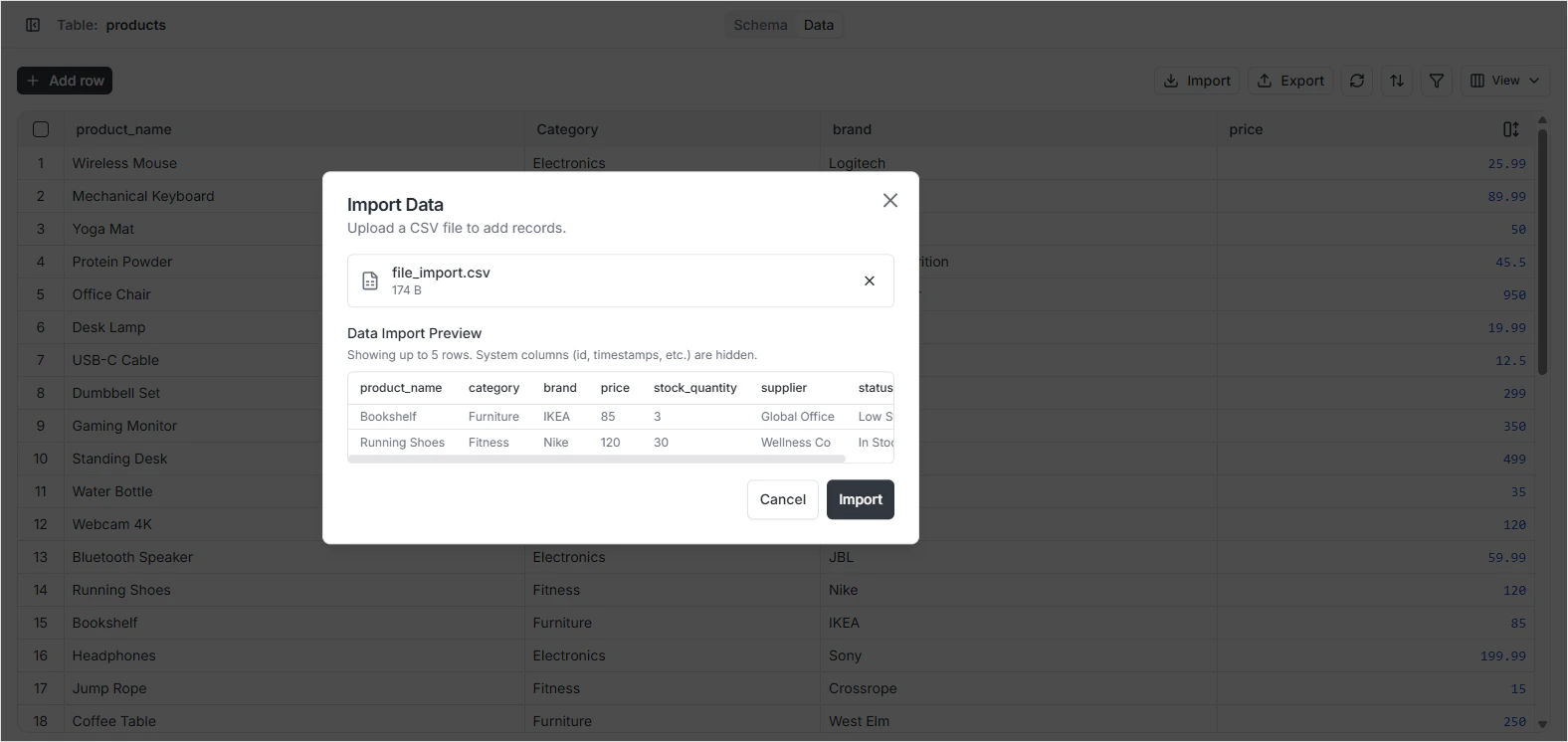 Click **Import Data**. The importer runs the rows in batches and reports the number of records imported successfully, plus any rows that failed validation.
 ## Preparing the CSV
A few small things make imports go smoothly:
* **Match column headers to field names.** The auto-mapper relies on header names; matching field names exactly removes a manual step.
* **Use ISO 8601 for dates.** `2025-03-14` for dates, `2025-03-14T10:30:00Z` for timestamps.
* **Use the exact enum values.** Enum and user-defined fields are case-sensitive — match the casing defined on the [Data Type](/features/backend/data-model/data-types).
* **Don't include id, created\_at, or audit columns.** Archie generates these automatically. If they're in the CSV, leave them unmapped.
* **Reference rows by their primary key for relationships.** If a CSV column maps to a relationship field, populate it with the related row's `id` (typically a UUID).
## Permissions
Importing data uses the same write permissions as adding rows through the [Data Viewer](/features/backend/data-model/data-viewer). A user who can't write to a field through the API can't import into it either. Configure access in [Role-Based Access](/features/backend/app-services/role-based-access).
## FAQ
The failing row is skipped and reported back with the field and reason. The remaining valid rows are still imported. Fix the offending rows and re-run the import for them only.
Yes. Map the relationship column in your CSV to the primary key (usually the UUID `id`) of the related row. The importer enforces referential integrity, so the related row must already exist.
Generally no — Archie generates IDs automatically. Include the id column only when you're explicitly upserting rows with known IDs (for example, restoring an export).
The importer batches rows so size isn't a hard ceiling, but very large files can take a while. For multi-million-row imports, consider splitting the file or scripting the load through a custom function.
No. The importer inserts new rows. To update existing rows in bulk, use the SQL Playground or a custom function.
## Preparing the CSV
A few small things make imports go smoothly:
* **Match column headers to field names.** The auto-mapper relies on header names; matching field names exactly removes a manual step.
* **Use ISO 8601 for dates.** `2025-03-14` for dates, `2025-03-14T10:30:00Z` for timestamps.
* **Use the exact enum values.** Enum and user-defined fields are case-sensitive — match the casing defined on the [Data Type](/features/backend/data-model/data-types).
* **Don't include id, created\_at, or audit columns.** Archie generates these automatically. If they're in the CSV, leave them unmapped.
* **Reference rows by their primary key for relationships.** If a CSV column maps to a relationship field, populate it with the related row's `id` (typically a UUID).
## Permissions
Importing data uses the same write permissions as adding rows through the [Data Viewer](/features/backend/data-model/data-viewer). A user who can't write to a field through the API can't import into it either. Configure access in [Role-Based Access](/features/backend/app-services/role-based-access).
## FAQ
The failing row is skipped and reported back with the field and reason. The remaining valid rows are still imported. Fix the offending rows and re-run the import for them only.
Yes. Map the relationship column in your CSV to the primary key (usually the UUID `id`) of the related row. The importer enforces referential integrity, so the related row must already exist.
Generally no — Archie generates IDs automatically. Include the id column only when you're explicitly upserting rows with known IDs (for example, restoring an export).
The importer batches rows so size isn't a hard ceiling, but very large files can take a while. For multi-million-row imports, consider splitting the file or scripting the load through a custom function.
No. The importer inserts new rows. To update existing rows in bulk, use the SQL Playground or a custom function.