> ## Documentation Index
> Fetch the complete documentation index at: https://archie.com/docs/llms.txt
> Use this file to discover all available pages before exploring further.
# Comments
> Leave feedback pinned to an exact spot on a screen, tag teammates, and track it through to resolved.
Comments let you leave feedback directly on a generated screen instead of describing it in chat or fixing it yourself. Use them to flag something for a teammate, leave a note for later, or ask Archie to act on the feedback — all without leaving the screen you're looking at.
## Leaving a comment
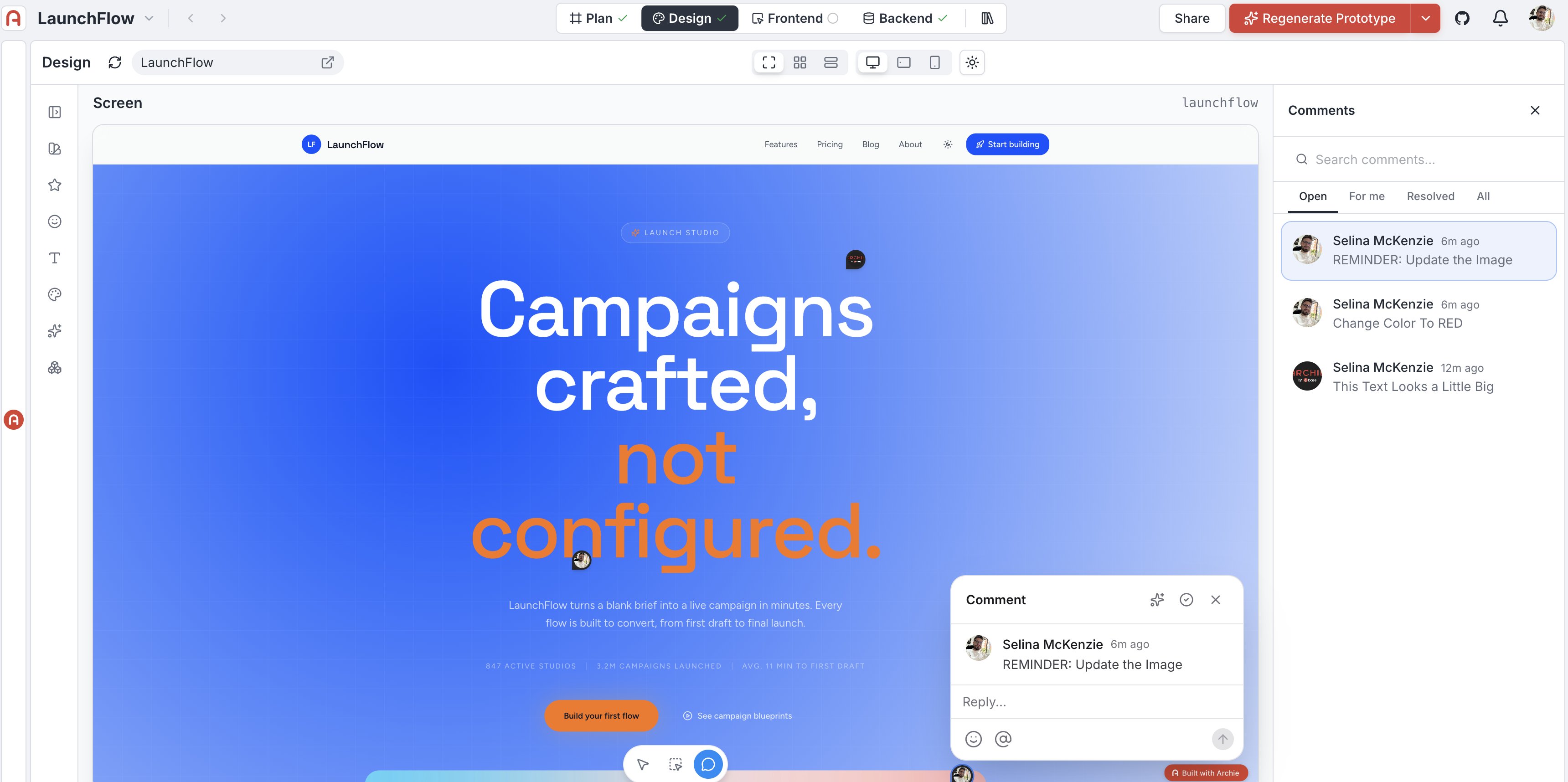
In [Screen view](/docs/features/design/screens/views#screen), switch to the **Comment** tool in the toolbar at the bottom of the canvas, then click anywhere on the screen to drop a pin. A comment card opens right there — write the note and submit it.
Because the comment is pinned to the exact spot you clicked, a note like "change color to red" or "update the image" is unambiguous about which element it refers to.
 ## Tagging teammates
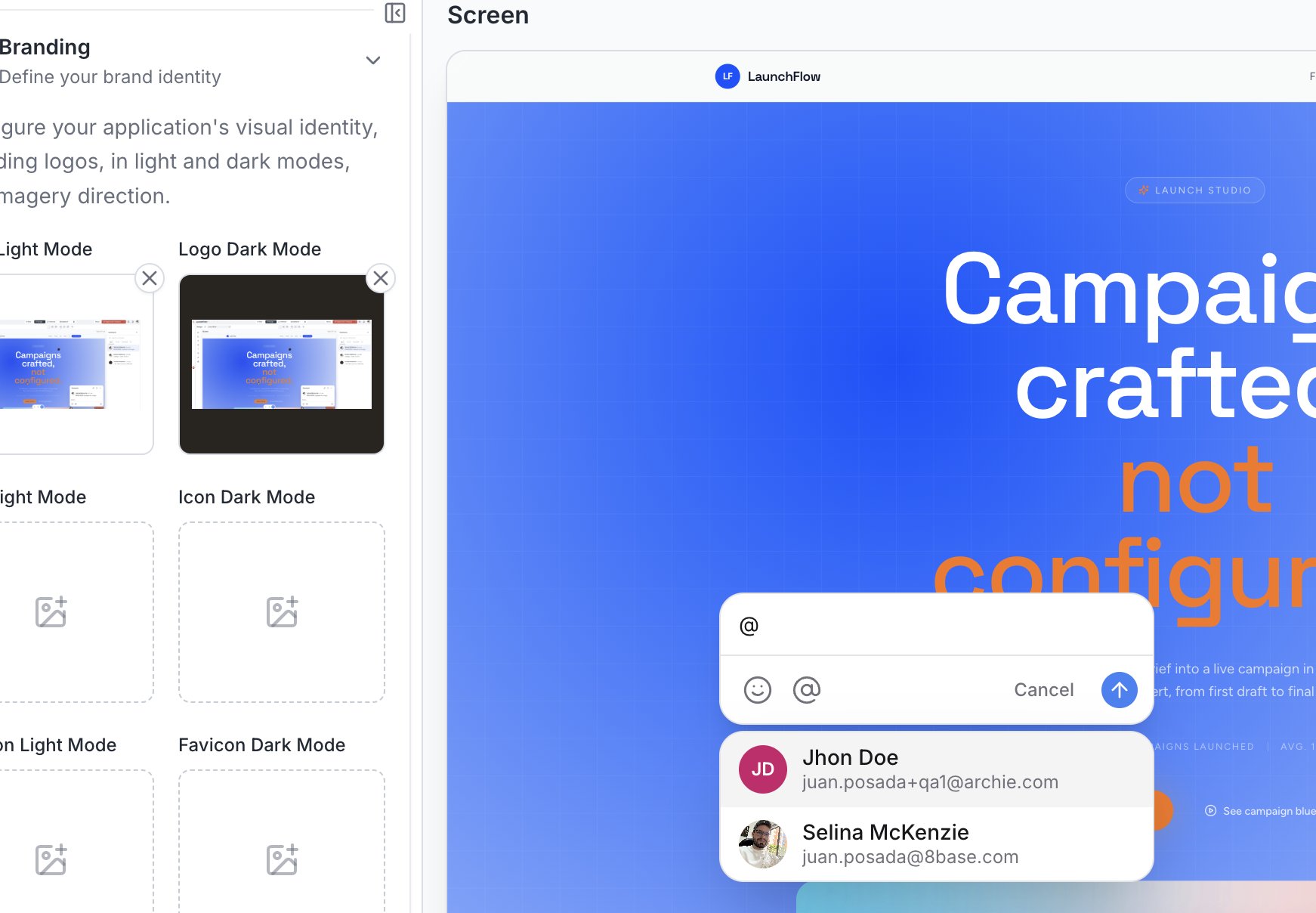
Type `@` in a comment to bring up a list of people on the project, with their name and email, and mention one directly. Mentioning someone is how you route feedback to a specific person rather than leaving it for whoever looks next — it's also what surfaces the comment under their **For me** tab.
## Tagging teammates
Type `@` in a comment to bring up a list of people on the project, with their name and email, and mention one directly. Mentioning someone is how you route feedback to a specific person rather than leaving it for whoever looks next — it's also what surfaces the comment under their **For me** tab.
 ## Resolving comments
Once a comment has been addressed, mark it resolved from the checkmark icon on the comment card. Resolved comments do not disappear — they move out of the **Open** tab but stay visible under **Resolved** or **All**.
## Filtering and finding comments
The **Comments** panel on the right lists every thread on the current screen. Four tabs narrow what you see:
* **Open** — unresolved comments, the default view
* **For me** — comments that mention you
* **Resolved** — comments already addressed
* **All** — everything, regardless of status
Use the search bar at the top of the panel to find a specific comment on a screen with a lot of feedback.
## Comments are scoped to a screen
Every comment belongs to the screen it was left on. Switching to a different screen shows that screen's own comments — not the ones you just left elsewhere. If feedback applies to more than one screen, leave it on each one.
## FAQ
Yes. The sparkle icon on a comment card hands it to Archie directly, turning the note into an instruction without retyping it in chat.
No. Resolving a thread moves it out of the **Open** tab, but it's still there under **Resolved** or **All** — comments aren't deleted unless you remove them.
Comments are saved per screen. Check the **Comments** panel while viewing the specific screen the comment was left on.
## Resolving comments
Once a comment has been addressed, mark it resolved from the checkmark icon on the comment card. Resolved comments do not disappear — they move out of the **Open** tab but stay visible under **Resolved** or **All**.
## Filtering and finding comments
The **Comments** panel on the right lists every thread on the current screen. Four tabs narrow what you see:
* **Open** — unresolved comments, the default view
* **For me** — comments that mention you
* **Resolved** — comments already addressed
* **All** — everything, regardless of status
Use the search bar at the top of the panel to find a specific comment on a screen with a lot of feedback.
## Comments are scoped to a screen
Every comment belongs to the screen it was left on. Switching to a different screen shows that screen's own comments — not the ones you just left elsewhere. If feedback applies to more than one screen, leave it on each one.
## FAQ
Yes. The sparkle icon on a comment card hands it to Archie directly, turning the note into an instruction without retyping it in chat.
No. Resolving a thread moves it out of the **Open** tab, but it's still there under **Resolved** or **All** — comments aren't deleted unless you remove them.
Comments are saved per screen. Check the **Comments** panel while viewing the specific screen the comment was left on.