> ## Documentation Index
> Fetch the complete documentation index at: https://archie.com/docs/llms.txt
> Use this file to discover all available pages before exploring further.
# Draw mode
> Annotate the live preview directly, then send your marks to chat to request precise, visual changes.
Draw mode turns the preview into an editable whiteboard. Instead of describing a change in words alone, you circle, box, or write directly on the screen — then hand those annotations to the chat so Archie knows exactly what you mean.
## Turning it on
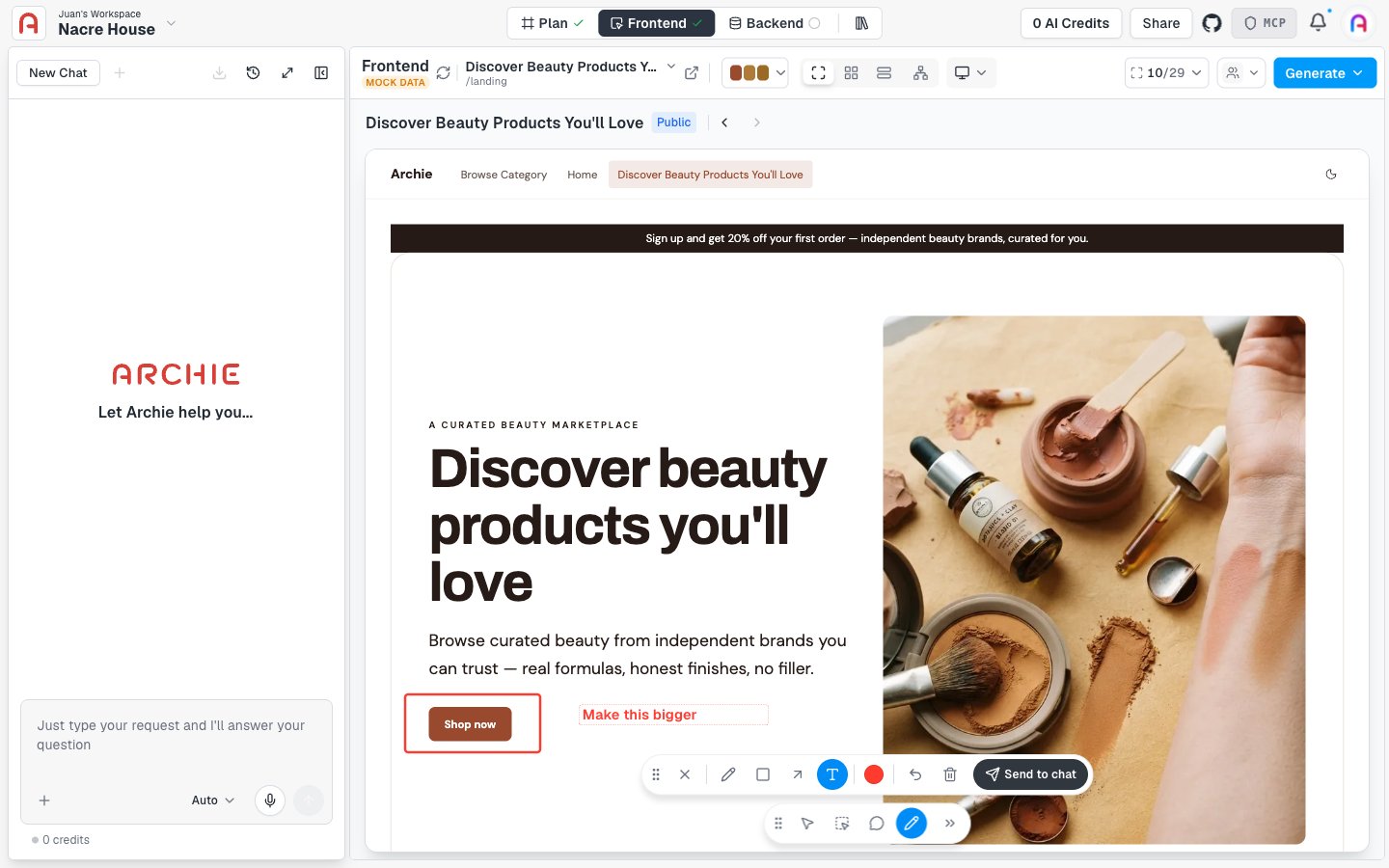
Click the pencil icon in the floating toolbar at the bottom of the canvas (alongside **Navigate**, **Select / Inspect**, and **Comment**). The toolbar switches to a drawing-specific set of tools: pen, rectangle, arrow, text, a color picker, undo, delete, and **Send to chat**.
## Marking up the screen
Use whichever tool fits the note:
* **Pen** — freehand marks
* **Rectangle** — box around the element you mean
* **Arrow** — point at something specific
* **Text** — write a short instruction right on the canvas
* **Color picker** — change the color of what you're about to draw
Draw as many marks as you need. In this example, a box calls out the button and a text note says what to change about it:
 ## Sending it to chat
Click **Send to chat**. Draw mode closes and your marks collapse into a single attachment in the chat input — labeled with the screen name and how many marks it contains (for example, "landing · 2 marks").
## Sending it to chat
Click **Send to chat**. Draw mode closes and your marks collapse into a single attachment in the chat input — labeled with the screen name and how many marks it contains (for example, "landing · 2 marks").
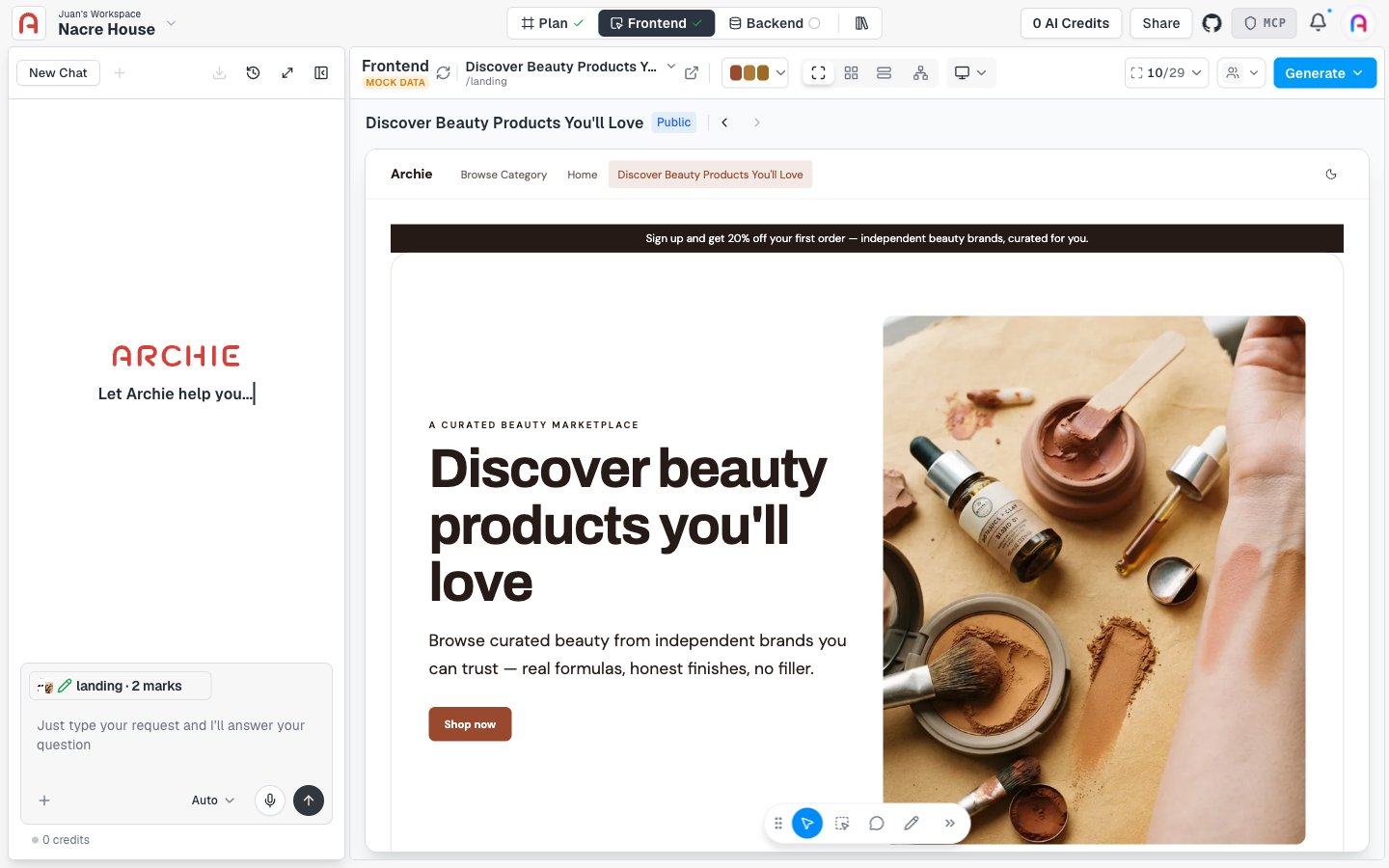 Type what you want done and send the message as normal. Archie reads the screenshot together with your marks and instructions, so a note like "make this bigger" pointing at a specific button is unambiguous about what to change — the same way it would be if you were marking up a screenshot for a teammate.
## When to use Draw mode
Reach for Draw mode when a change is easier to point at than to describe — resizing or repositioning something, calling out several small tweaks across the screen at once, or flagging a spot where "that one, right there" is clearer than a written description. For changes you can fully describe in words, [Talking to Archie](/docs/features/frontend/talking-to-archie) alone is faster. For a single element you want to edit directly rather than describe, use the [visual editor](/docs/features/frontend/visual-editor).
## FAQ
No. Sending to chat clears the canvas and returns you to normal preview. The marks live on in the chat as an attached image.
Each attachment is scoped to the screen you were drawing on. Switch screens and use Draw mode again to annotate a different one — it attaches separately.
Use undo to remove the last mark, or the delete tool to clear one you've selected.
Type what you want done and send the message as normal. Archie reads the screenshot together with your marks and instructions, so a note like "make this bigger" pointing at a specific button is unambiguous about what to change — the same way it would be if you were marking up a screenshot for a teammate.
## When to use Draw mode
Reach for Draw mode when a change is easier to point at than to describe — resizing or repositioning something, calling out several small tweaks across the screen at once, or flagging a spot where "that one, right there" is clearer than a written description. For changes you can fully describe in words, [Talking to Archie](/docs/features/frontend/talking-to-archie) alone is faster. For a single element you want to edit directly rather than describe, use the [visual editor](/docs/features/frontend/visual-editor).
## FAQ
No. Sending to chat clears the canvas and returns you to normal preview. The marks live on in the chat as an attached image.
Each attachment is scoped to the screen you were drawing on. Switch screens and use Draw mode again to annotate a different one — it attaches separately.
Use undo to remove the last mark, or the delete tool to clear one you've selected.