

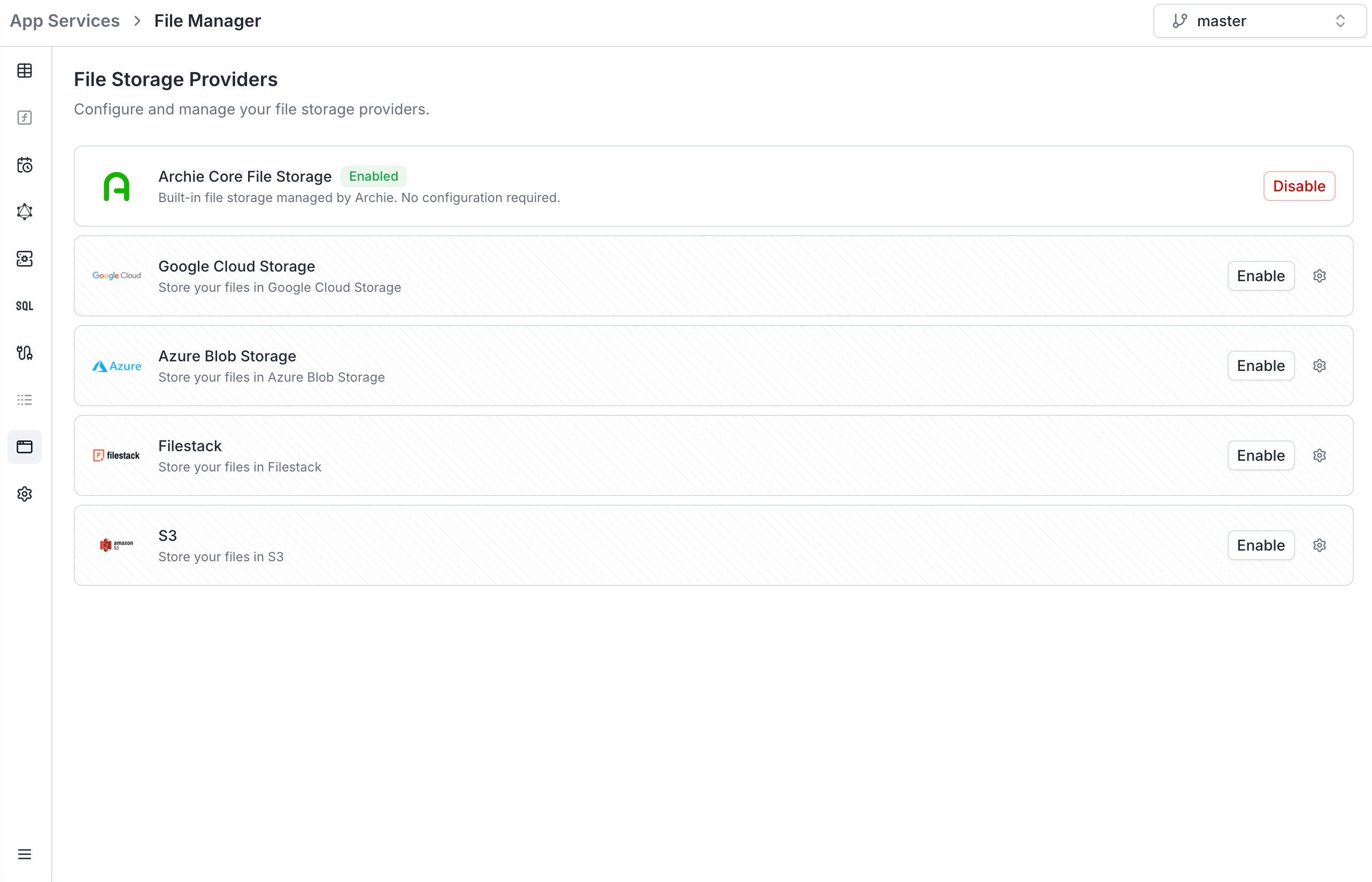
Per-environment configuration
File storage providers are scoped per environment. Each environment has its own set of configured providers — useful for keepingdev uploads in a separate bucket from production.
When you branch a new environment, you can optionally tick File storage providers in the branching modal to copy the configuration. Each copy gets a new unique identifier so it can be edited independently.
Supported providers
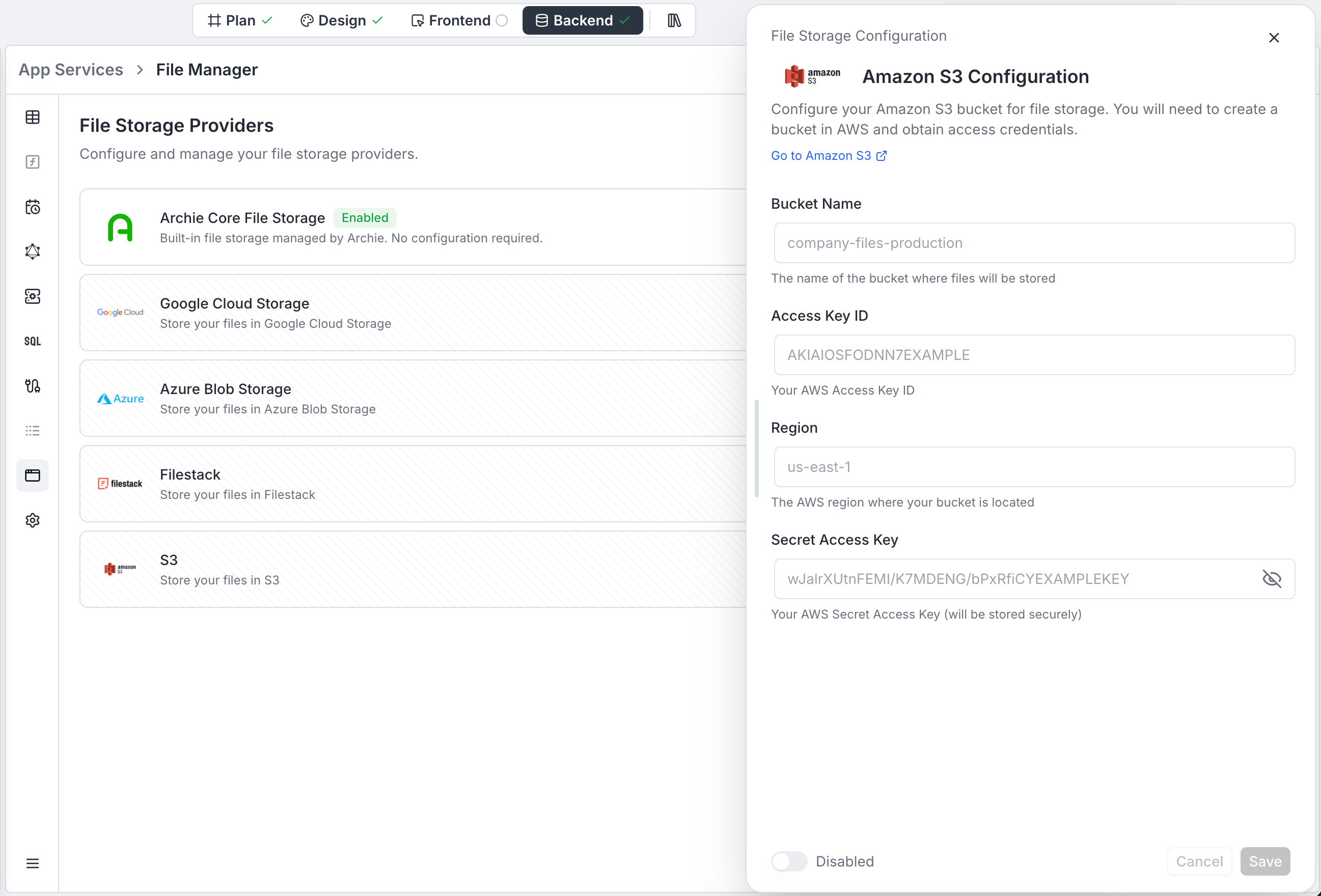
Amazon S3
Connect an AWS S3 bucket via Access Key ID and Secret Access Key.
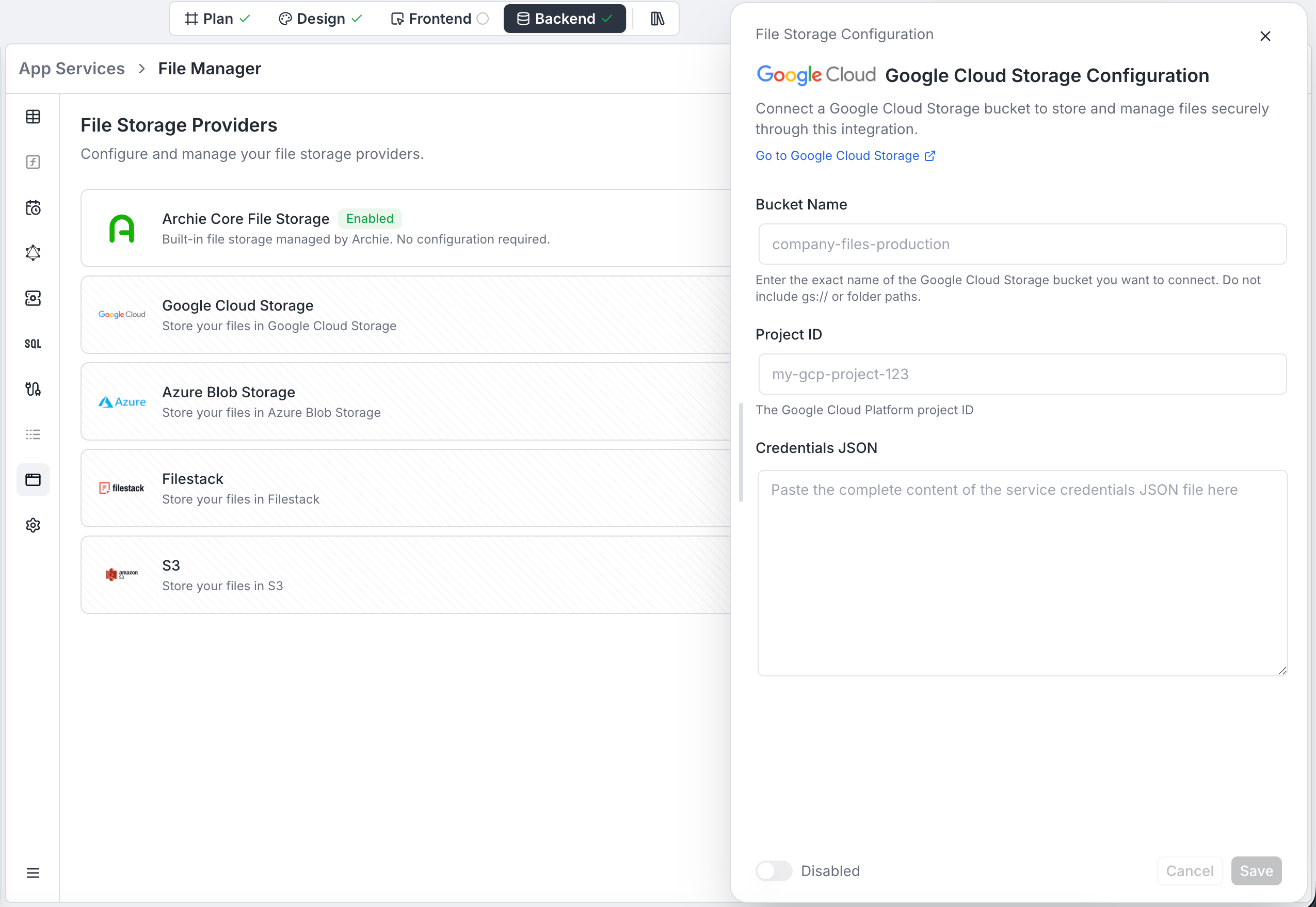
Google Cloud Storage
Connect a GCP bucket via a service account credentials JSON.
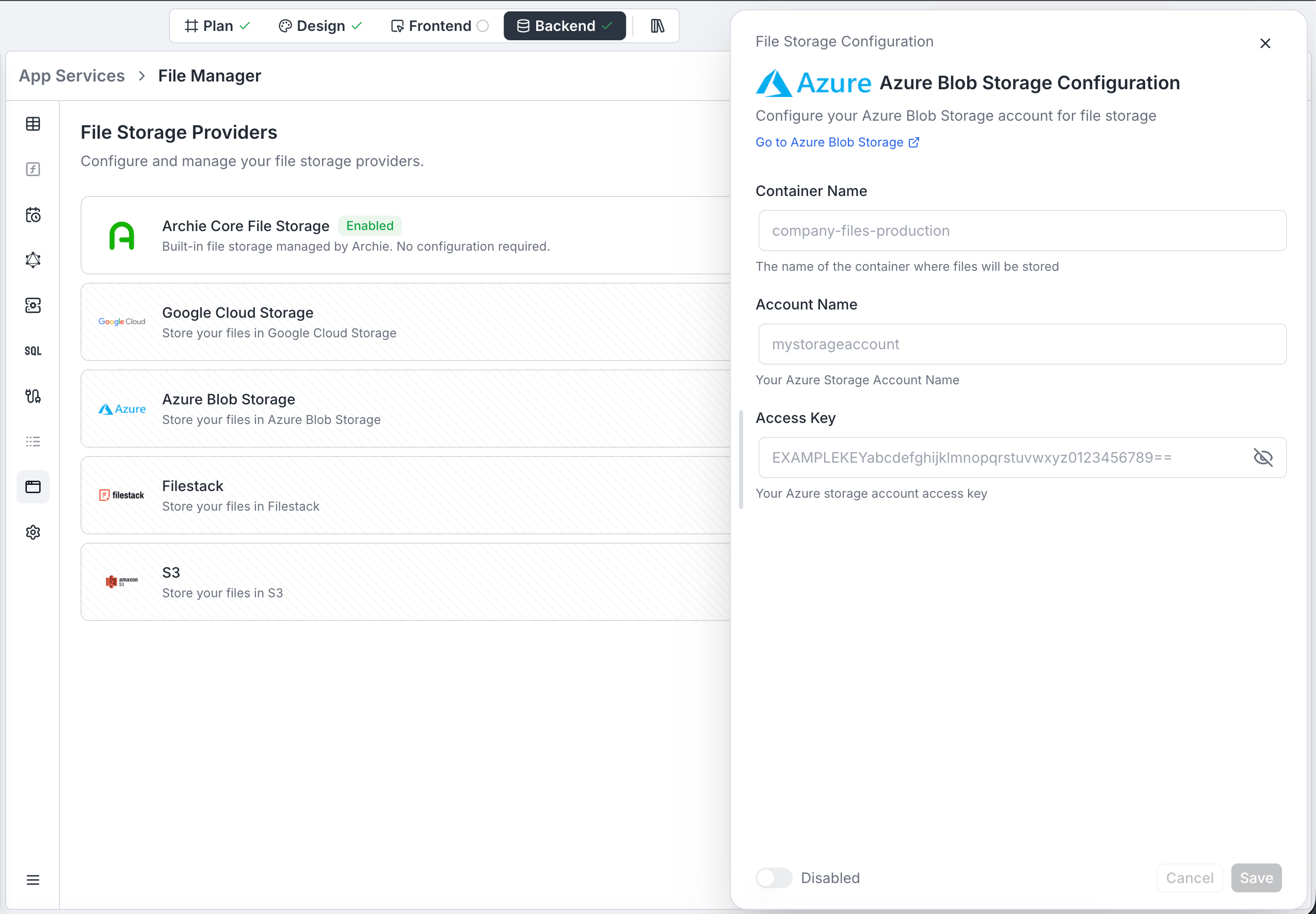
Azure Blob Storage
Connect an Azure Storage container via account name and access key.
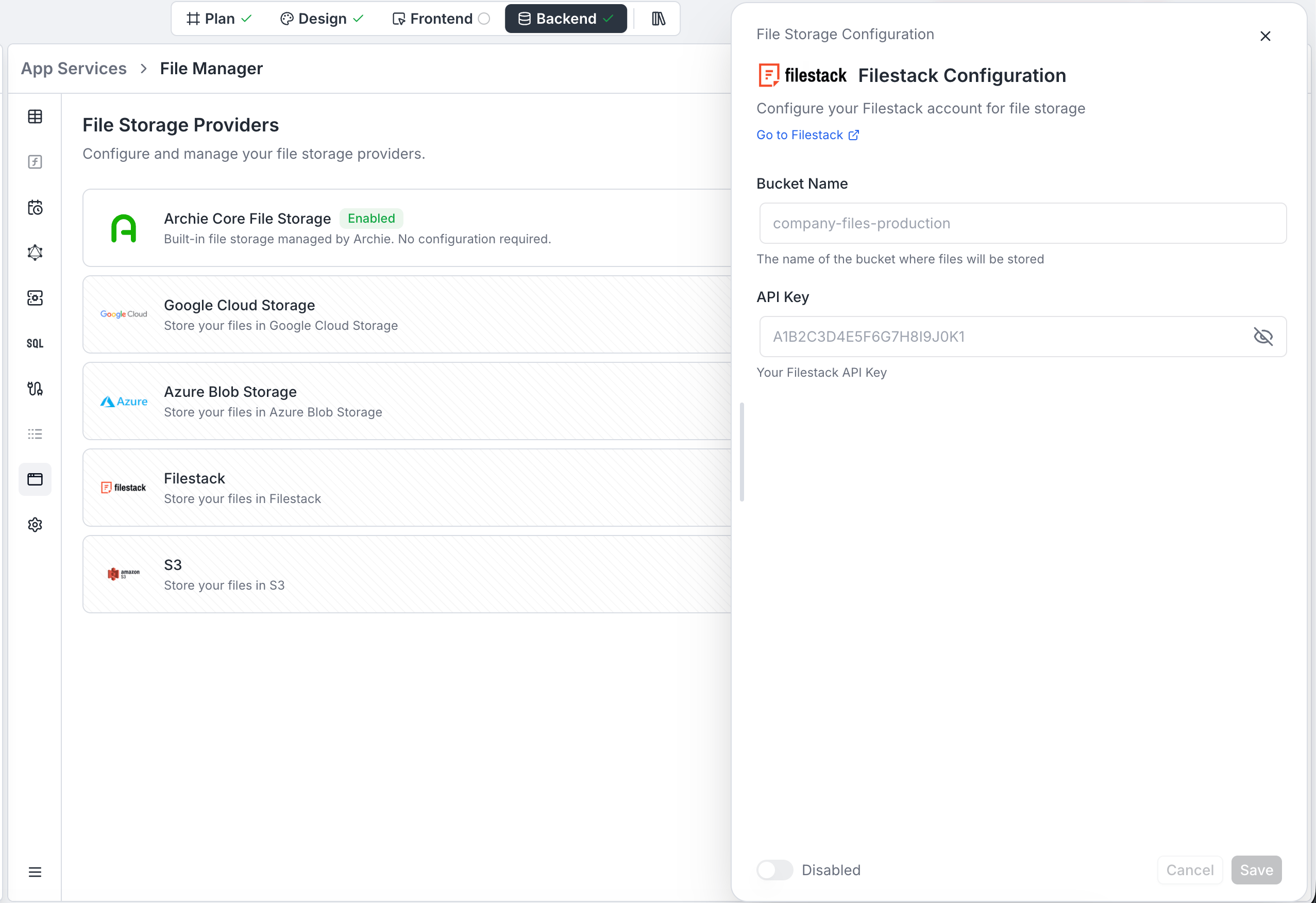
Filestack
Connect a Filestack bucket via the API key from your Filestack dashboard.
Amazon S3
Google Cloud Storage
Azure Blob Storage
Filestack
Uploading and retrieving files
The configured provider backs the standard file endpoints. You don’t call the storage provider directly — Archie handles signing, validation, and access control.- REST:
POST /api/rest/files,GET /api/rest/files/{id},DELETE /api/rest/files/{id}. Full reference at REST → File management. - Records: Store the returned
fileIdon a record (typically in a JSONB or text field) and re-issue the signed download URL when you need to serve the file.
Uploading via GraphQL
Archie also exposes anuploadFile mutation automatically — you don’t write a resolver for it.
providerType changes:
Pass whichever value matches the provider configured for your project.
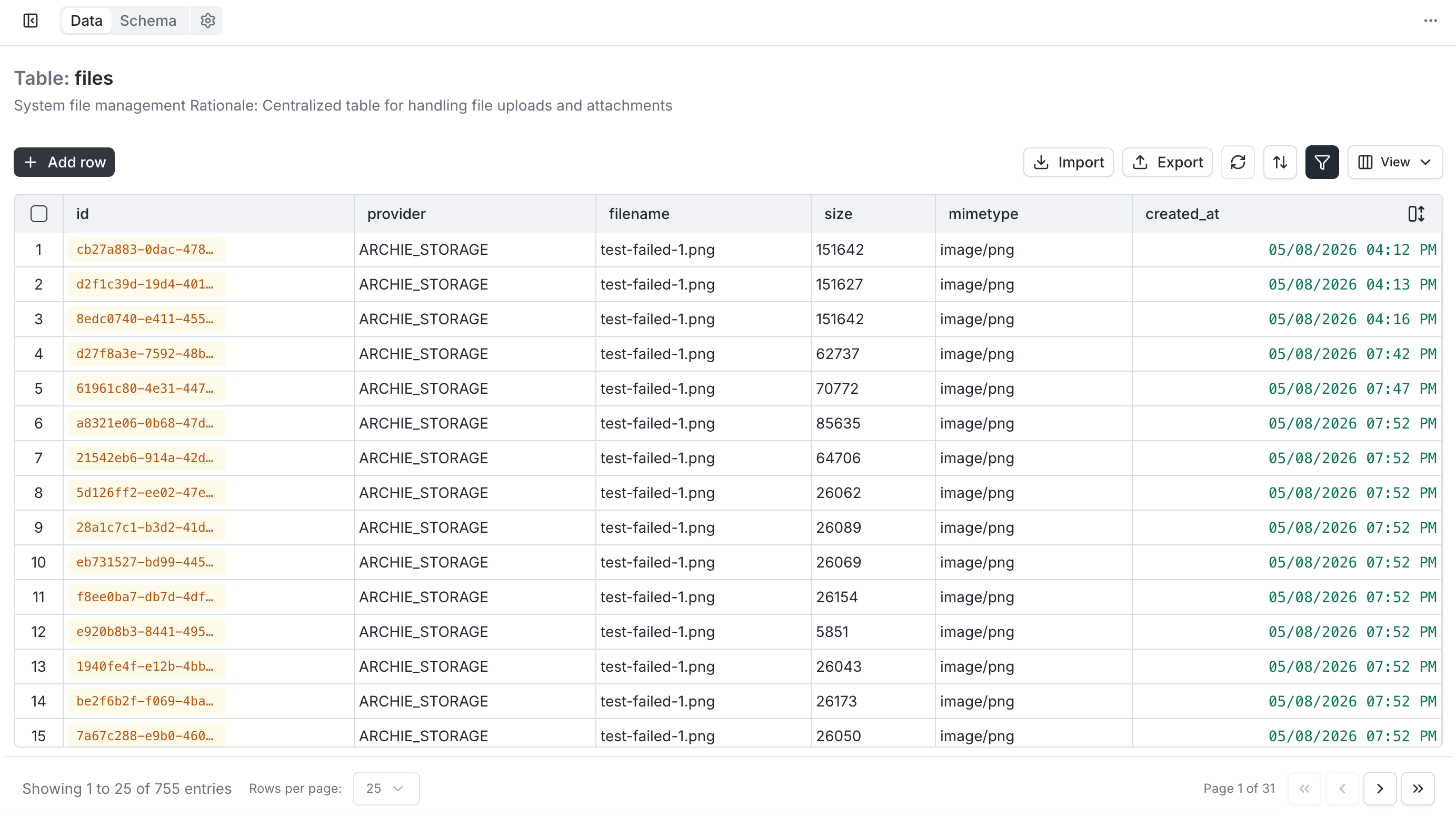
Once the upload succeeds, Archie creates a record in the files table of the Data Model with everything you need to consume the file from any application —
filename, size, mimeType, and downloadUrl.
Supported MIME types
The upload endpoint accepts a broad allowlist by prefix:
Unsupported types return
422 Unprocessable Entity from the upload endpoint.
Permissions
Who can upload, list, download, and delete files is governed in Role-Based Access like every other endpoint. For per-record file access (a user can only download files attached to records they own), reference the file from a Data Model record and govern access through that table’s permissions.FAQ
Can I configure more than one provider at the same time?
Can I configure more than one provider at the same time?
Yes — every supported provider can be configured concurrently. When uploading, you select the target provider via the
providerType form field. Useful for migrations or tiered storage (hot in S3, cold in Glacier-backed S3, archived in another bucket).Are credentials copied when I branch an environment?
Are credentials copied when I branch an environment?
Only if you explicitly tick File storage providers in the branching modal. The copy gets a new ID, so future edits don’t propagate back. Branching never copies authentication-provider secrets — those stay env-specific by design.
What happens to existing files if I switch providers?
What happens to existing files if I switch providers?
They stay in the old provider until you migrate them. Archie tracks the provider per file, so old uploads keep resolving to their original bucket. Run a migration script if you want to consolidate.
What's the maximum upload size?
What's the maximum upload size?
Enforced at the gateway. Exceeding it returns
413 Payload Too Large. For very large files, use a direct-to-storage upload pattern through your provider’s SDK and store only the resulting object key in Archie.How do I attach a file to a record?
How do I attach a file to a record?
Upload the file to get a
fileId, then store that fileId on a JSONB or text field on the record. Re-issue the signed URL through the download endpoint when you need to serve it. See REST → File management.