

Leaving a comment
In Screen view, switch to the Comment tool in the toolbar at the bottom of the canvas, then click anywhere on the screen to drop a pin. A comment card opens right there — write the note and submit it. Because the comment is pinned to the exact spot you clicked, a note like “change color to red” or “update the image” is unambiguous about which element it refers to.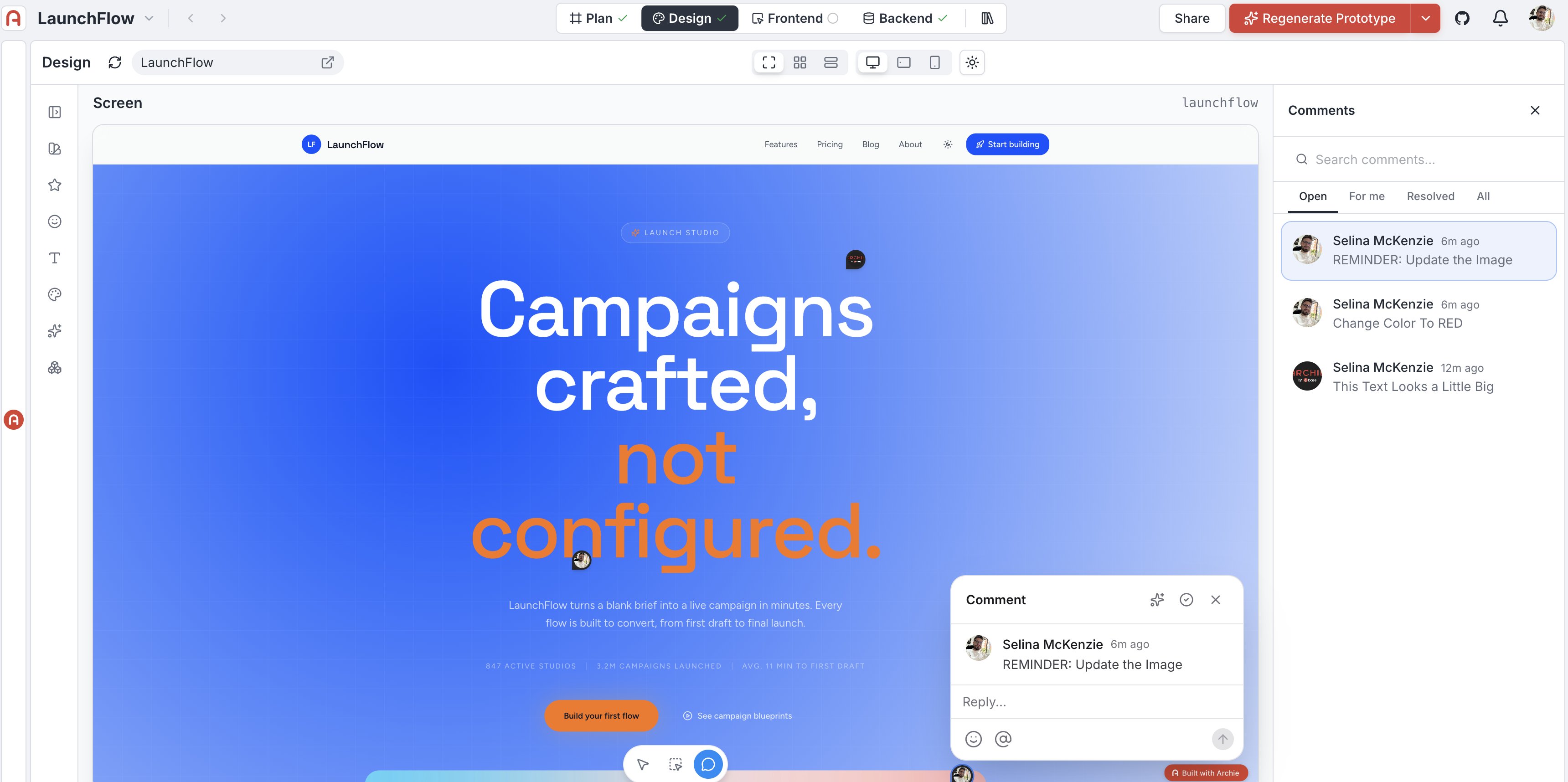
Tagging teammates
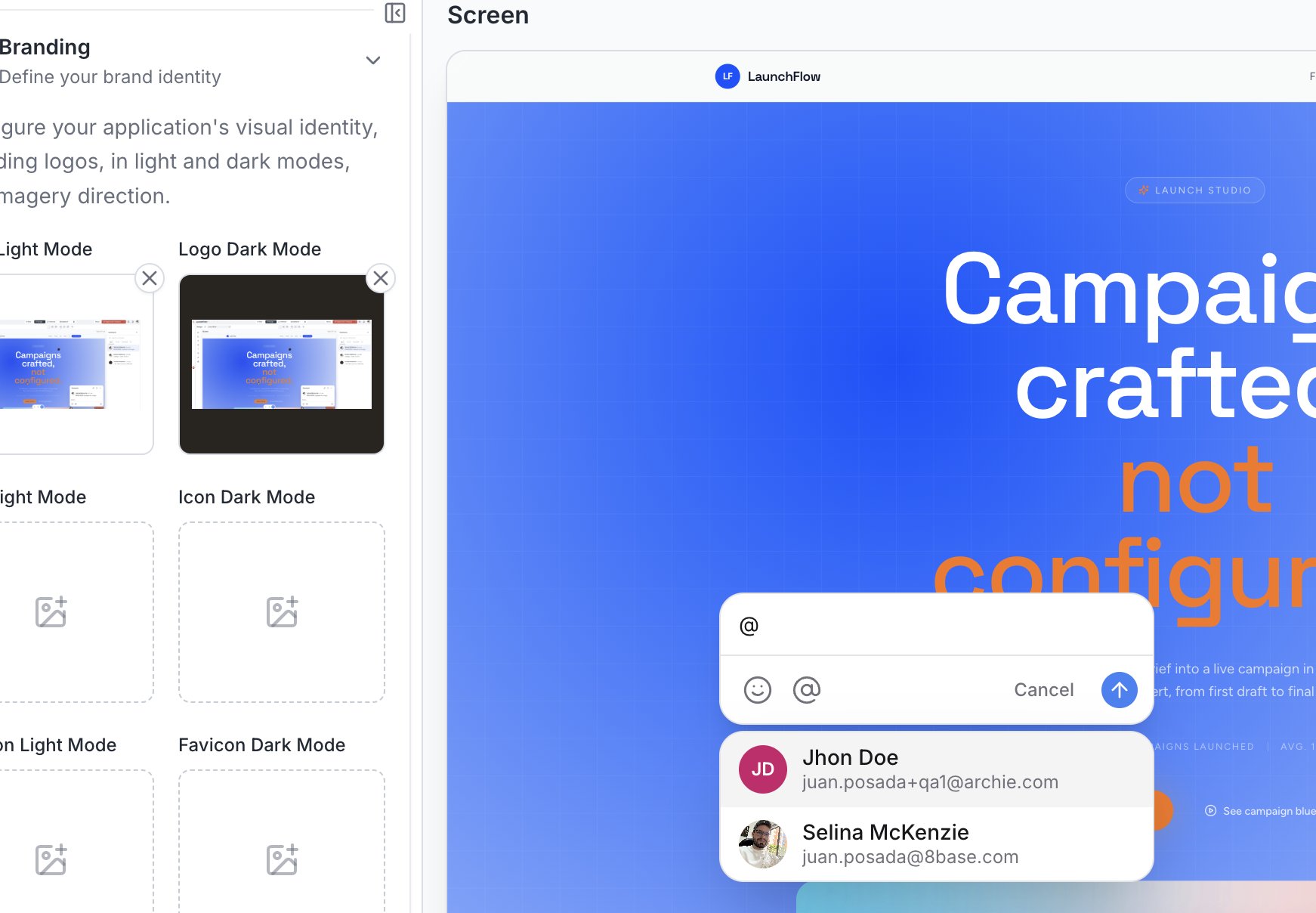
Type@ in a comment to bring up a list of people on the project, with their name and email, and mention one directly. Mentioning someone is how you route feedback to a specific person rather than leaving it for whoever looks next — it’s also what surfaces the comment under their For me tab.
Resolving comments
Once a comment has been addressed, mark it resolved from the checkmark icon on the comment card. Resolved comments do not disappear — they move out of the Open tab but stay visible under Resolved or All.Filtering and finding comments
The Comments panel on the right lists every thread on the current screen. Four tabs narrow what you see:- Open — unresolved comments, the default view
- For me — comments that mention you
- Resolved — comments already addressed
- All — everything, regardless of status
Comments are scoped to a screen
Every comment belongs to the screen it was left on. Switching to a different screen shows that screen’s own comments — not the ones you just left elsewhere. If feedback applies to more than one screen, leave it on each one.FAQ
Can I use comments to describe a change I want made, not just feedback?
Can I use comments to describe a change I want made, not just feedback?
Yes. The sparkle icon on a comment card hands it to Archie directly, turning the note into an instruction without retyping it in chat.
Do resolved comments disappear?
Do resolved comments disappear?
No. Resolving a thread moves it out of the Open tab, but it’s still there under Resolved or All — comments aren’t deleted unless you remove them.
Why don't I see a comment I left on another screen?
Why don't I see a comment I left on another screen?
Comments are saved per screen. Check the Comments panel while viewing the specific screen the comment was left on.