

Screen
A single screen at full size, live in an interactive preview.
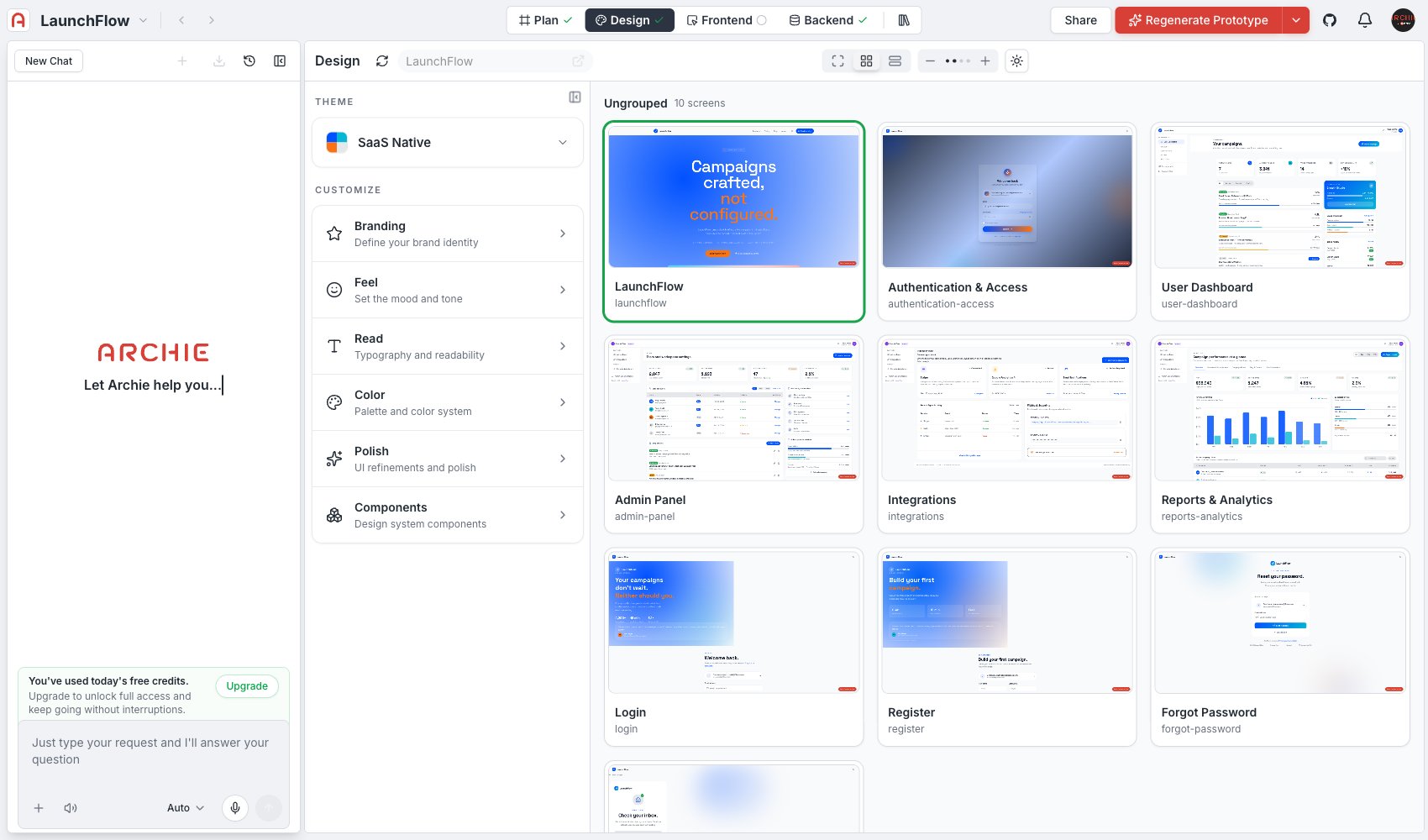
Grid
Every screen as a thumbnail, grouped by module.
Pages
Every screen listed for quick scanning.
Sitemap
The full site structure as a node graph, module by module.
Screen
The default view. Shows the current screen full size, in an interactive preview you can click into — see Navigation for the device and dark-mode controls, and Editing a screen for how to change what’s on it.Grid and Pages
Both give you an overview of every generated screen at once instead of one at a time — useful for a quick visual pass across the whole app after a design change. Grid and Pages both support:- Group by module — cluster screens by the module they belong to, color-coded
- Search — find a screen by name
- All modules / All surfaces filters — narrow the set shown
Sitemap
Shows your app’s structure as a node graph: a root node fanning out to each module, and each module fanning out to its screens. Beyond your blueprint’s modules, Sitemap also surfaces the core services Archie generates screens for automatically — things like User Management, Payment Processing, and Notifications.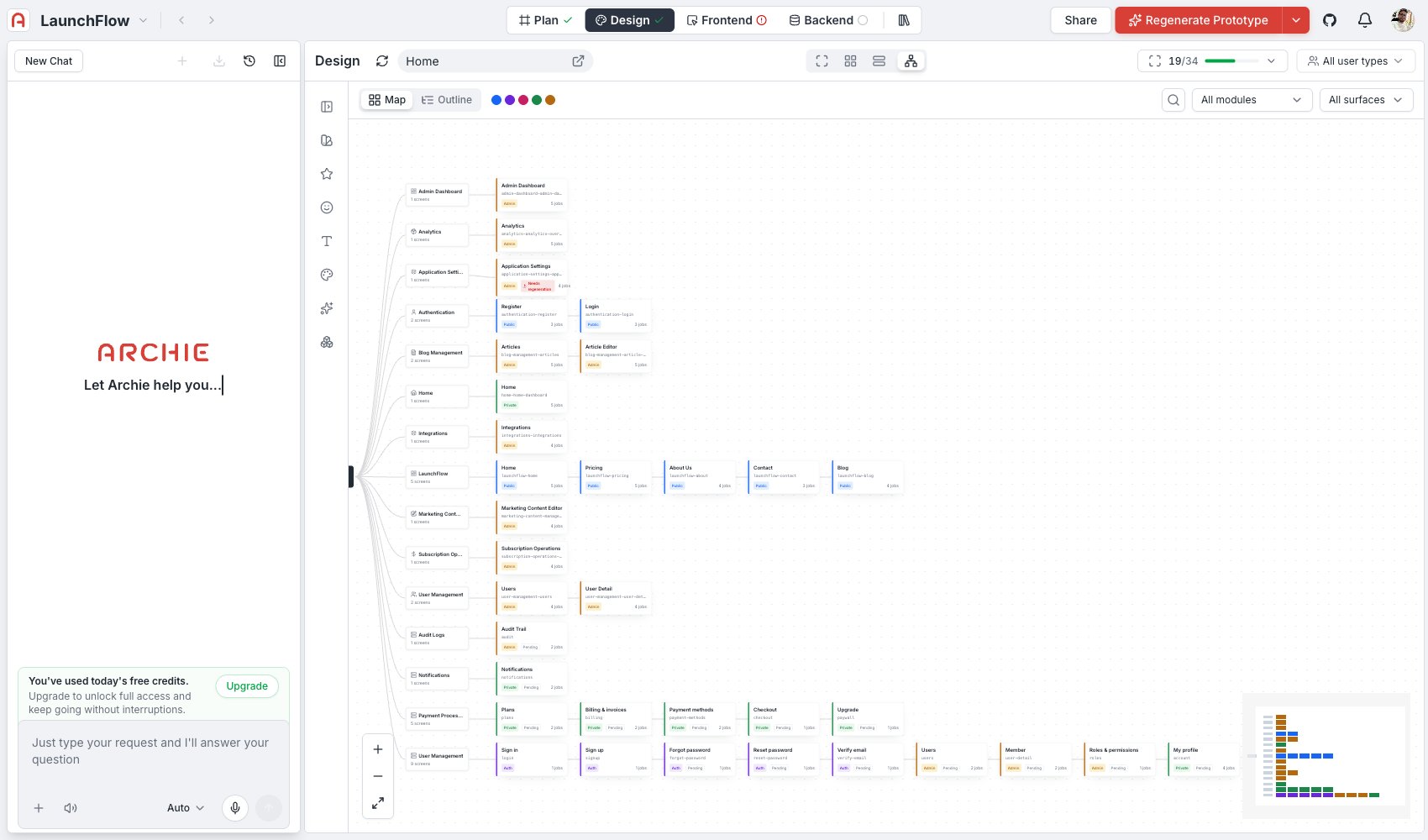
- Its name and route
- An access badge — Public, Private, Admin, or Auth
- Generation status, when relevant (for example, Pending or Needs regeneration)
- How many jobs it took to generate
The screen drawer
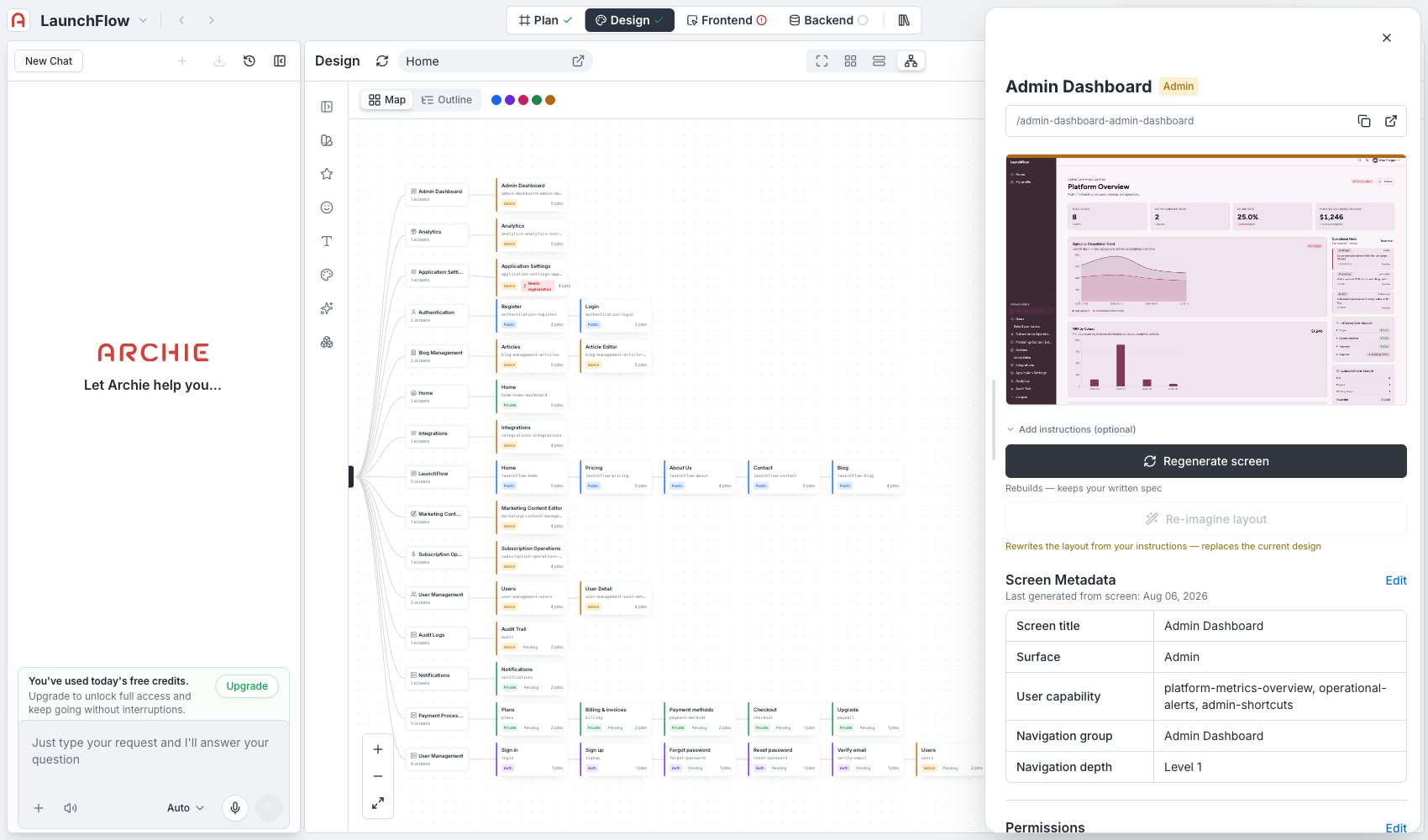
Click any screen node to open a drawer with everything Archie knows about that screen. It’s the closest thing to a spec sheet for a single screen:- Preview and route — a thumbnail of the current screen, its route path (with a copy button), and a link to open it directly
- Regenerate screen — rebuilds the screen but keeps its written spec
- Re-imagine layout — rewrites the layout from instructions you add in the field above it, replacing the current design; only enabled once you’ve added instructions
- Screen Metadata — screen title, surface, user capability, navigation group, and navigation depth
- Permissions — view-only access and manage access, each showing which roles are granted
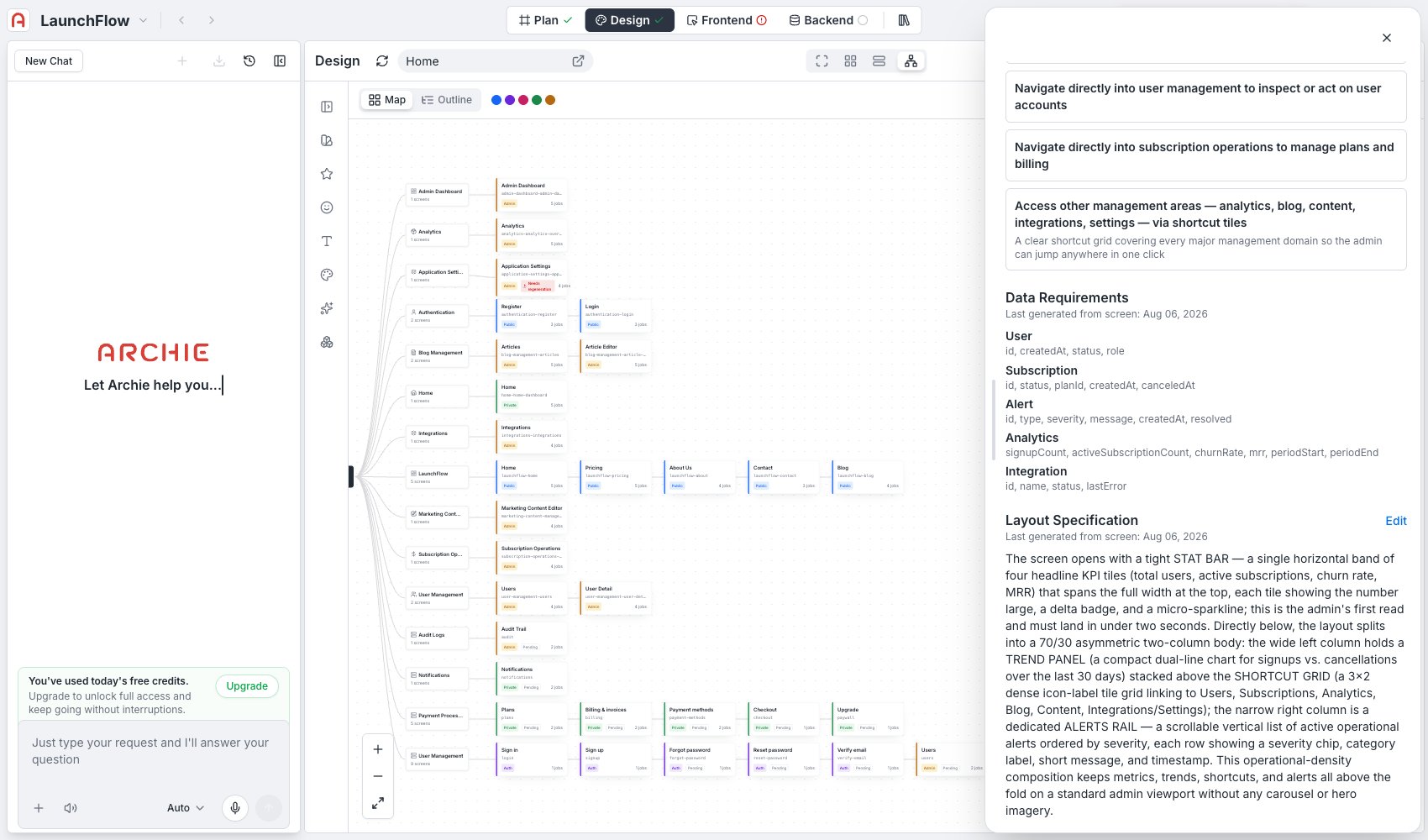
- Purpose — a short paragraph on why the screen exists
- Key Jobs — the specific tasks the screen is built to support, each with a one-line summary and a longer description
- Data Requirements — every data entity the screen depends on, listed with its fields (for example,
Subscription—id, status, planId, createdAt, canceledAt) - Layout Specification — a detailed written description of the screen’s composition — regions, hierarchy, and what each part is for
FAQ
Why does Sitemap show screens I didn't add to my blueprint?
Why does Sitemap show screens I didn't add to my blueprint?
Core services like User Management, Payment Processing, and Notifications generate their own screens (login, checkout, the notification inbox, and so on) automatically, alongside the modules you defined yourself.
What's the difference between Regenerate screen and Re-imagine layout?
What's the difference between Regenerate screen and Re-imagine layout?
Regenerate screen rebuilds the screen from its existing spec — use it after a design value or content change elsewhere. Re-imagine layout replaces the layout itself, driven by instructions you write in the drawer, for when the structure needs to change, not just the values feeding it.
Can I edit the Layout Specification directly instead of regenerating from instructions?
Can I edit the Layout Specification directly instead of regenerating from instructions?
Yes. Click Edit next to Layout Specification to change the written spec directly, the same way you can edit Screen Metadata and Permissions.