

Switching screens
The page selector at the top of Design shows the current screen’s name. Click it to search or browse the full list of Available Routes and jump to any screen.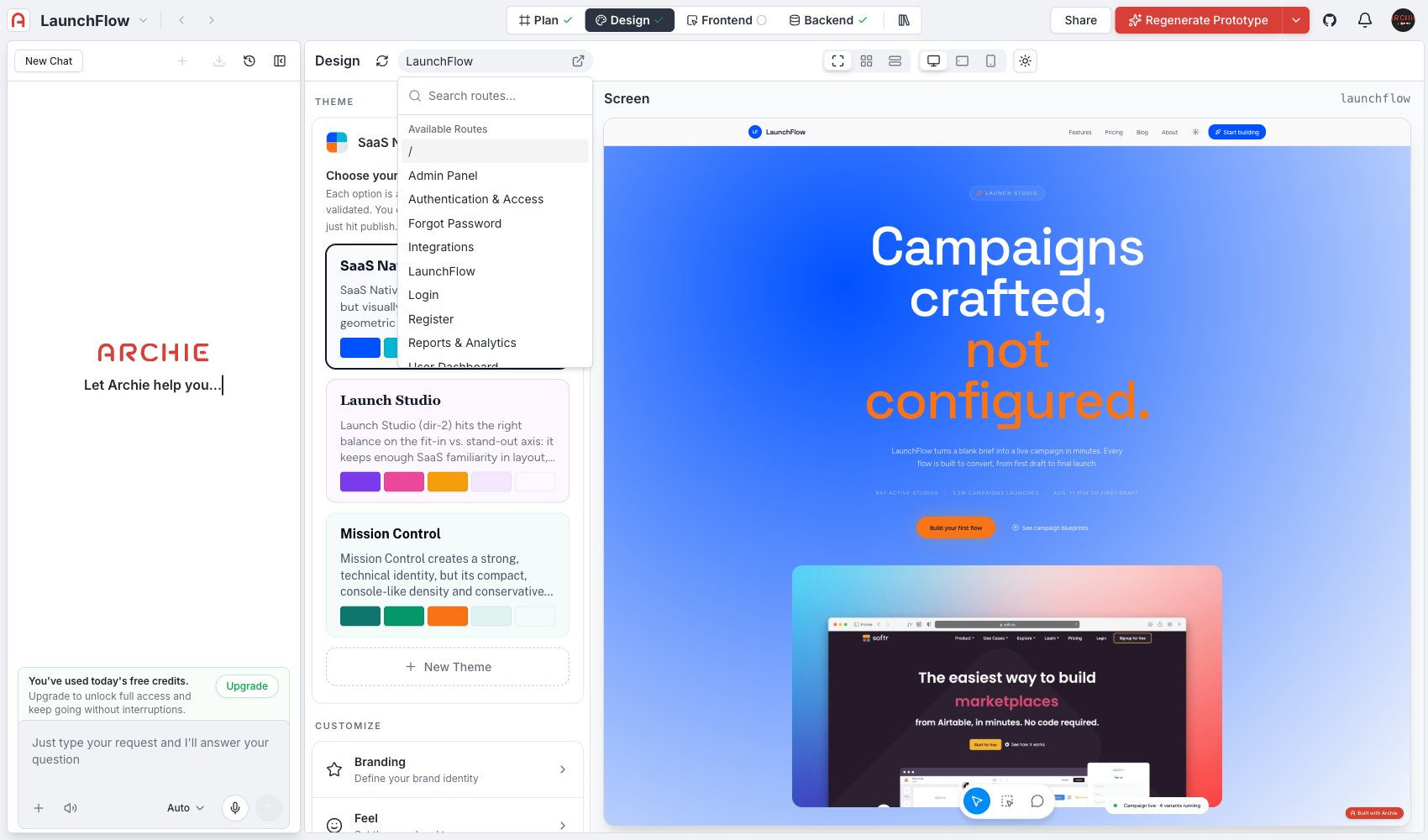
Checking devices and dark mode
In Screen view, use the device toggles — Desktop, Tablet, Mobile — to check the current screen at different viewport widths, and the light/dark toggle to preview it in either mode.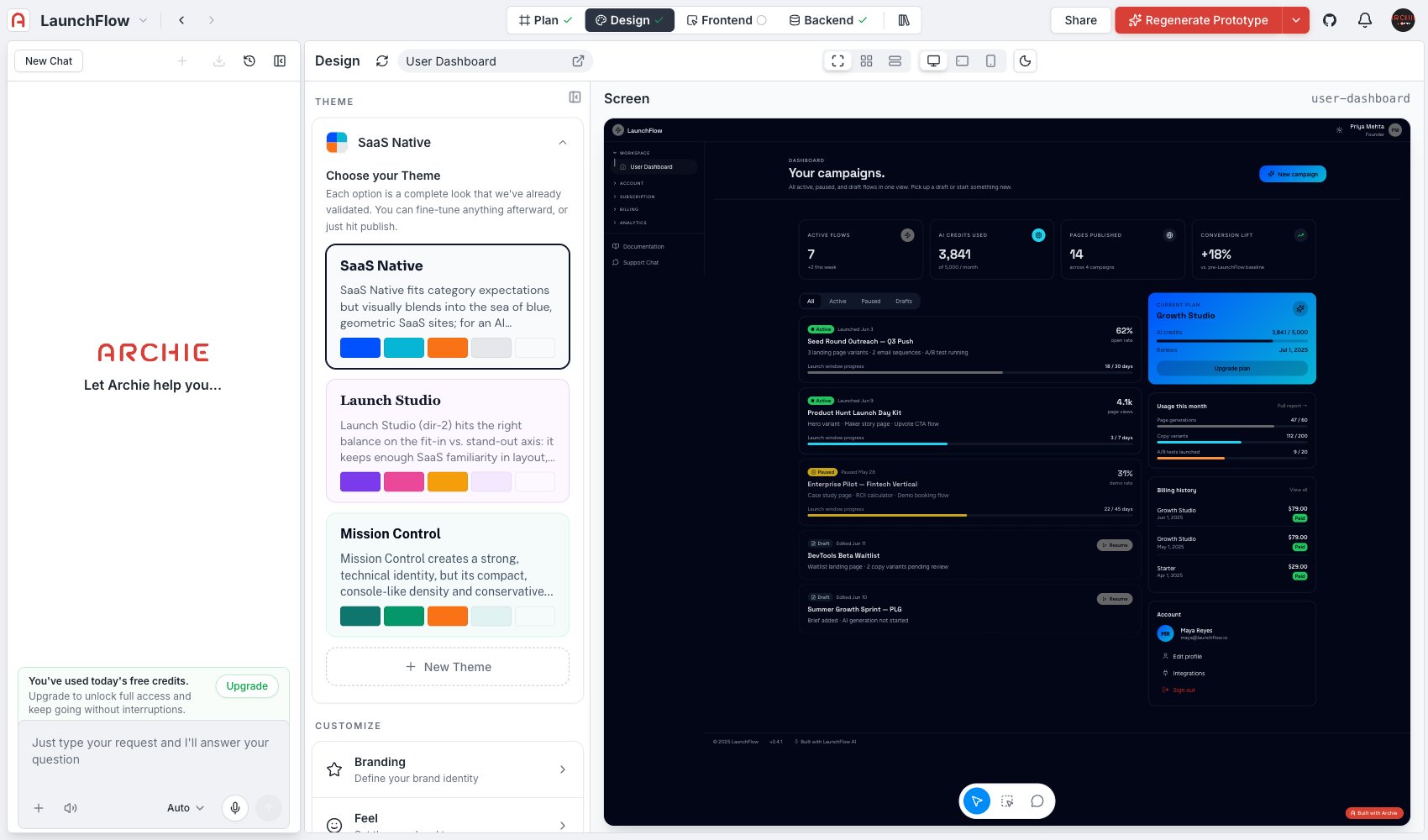
Generation progress
The Generated: X/Y readout near the top of the page tracks how many of your blueprint’s screens have been generated so far. Screens still pending show up flagged in Sitemap.Previewing by user type
The User Type filter narrows every view to the screens relevant to a single user type from your blueprint — useful for reviewing an admin’s experience separately from an end user’s, without the rest of the app in the way.FAQ
Does the User Type filter change what a user can actually access?
Does the User Type filter change what a user can actually access?
No — it only changes what you see while working in Design, so you can review one audience’s screens at a time. Actual access control for your app is defined in the blueprint’s user types and enforced by the backend, not by this filter.